
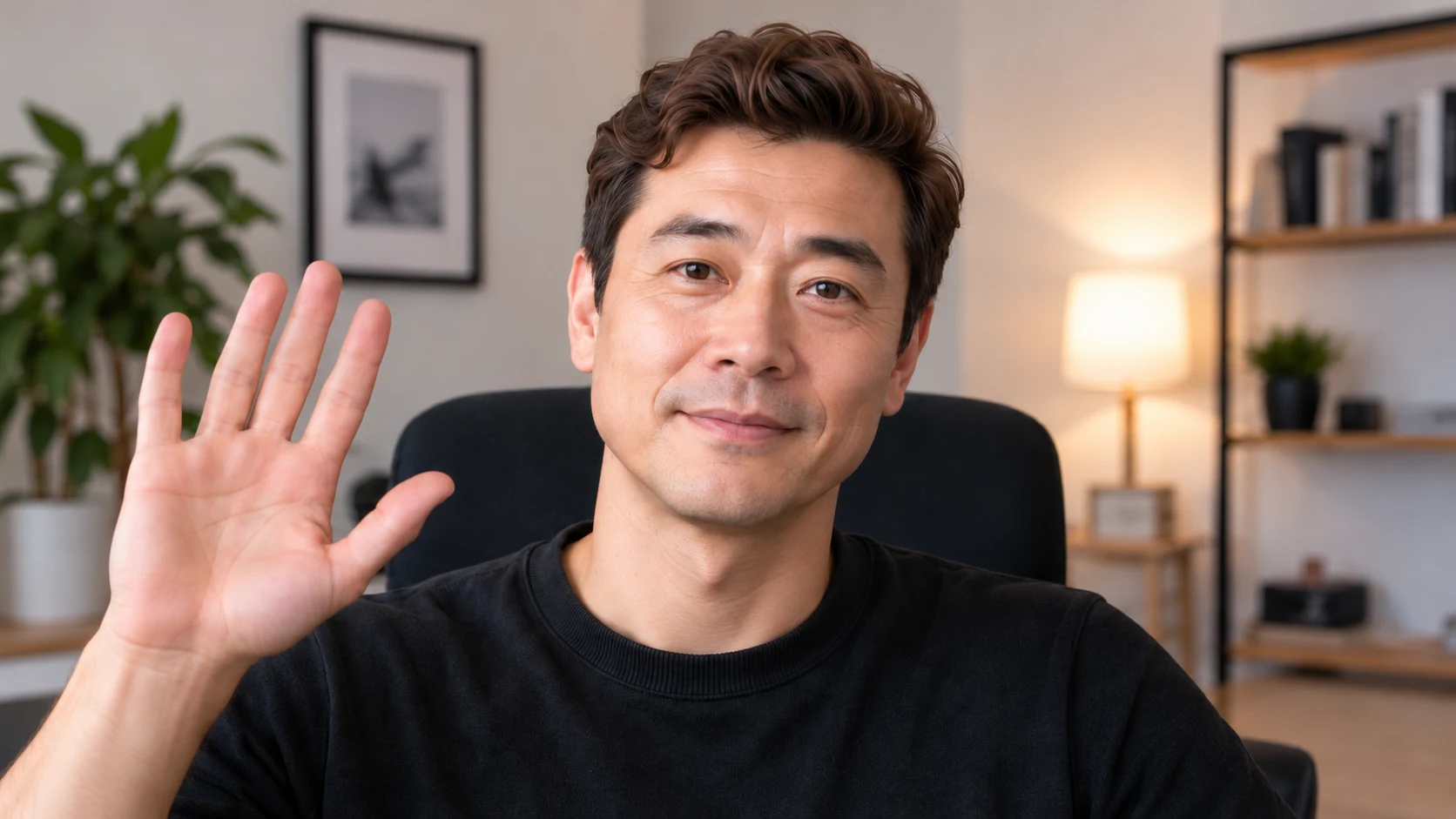
Live Face Swap AI transforms your webcam feed using a reference image. Choose a realistic face, an anime character, or a fantasy persona, then use your own expressions and movements to bring it to life. You can explore a new look, record something fun, perform as different characters, or take your AI appearance into a stream or video call.
This guide helps you choose between the browser studio and Windows app, create your first live face swap, and decide where to use the result. You can start with the preview; connecting to another app comes later.
Jump to: Choose your setup · Your first face swap · Videos, streams, and calls · Better results · Finish your session · Common questions
How live face swapping works
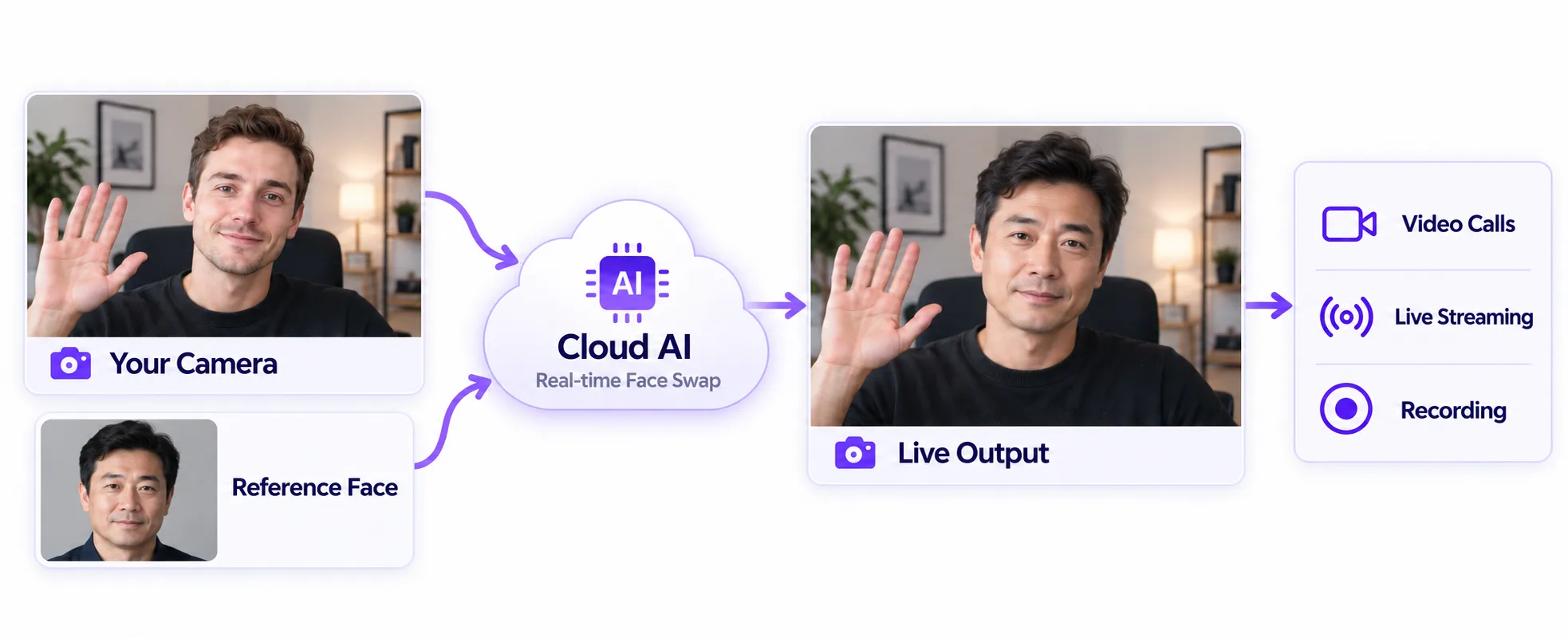
Your reference image guides the appearance. Your webcam supplies the performance: your smile, speech, head movements, and gestures. Cloud AI uses these inputs to generate transformed video and sends it back to your browser or desktop app.
Both versions need an internet connection. Installing the Windows app adds virtual-camera output; AI processing still happens in the cloud.
1. Choose your setup: browser or Windows
Choose based on your device and where you want your video to go. You can use the same Live Face Swap AI account and credit balance in both versions.
| What you want to do | A good starting point |
|---|---|
| Try a transformation or make a short clip | Open the browser studio in desktop Chrome or Edge. |
| Regularly use AI video in other apps on Windows | Install the Windows app for its built-in virtual camera. |
| Use a Mac | Use the browser studio, with OBS when connecting to other apps. |
The browser studio lets you preview effects without installing Live Face Swap AI. To send its video to a meeting or streaming app, use OBS to capture the browser output. For calls, OBS Virtual Camera then supplies the video to your meeting app.
The Windows app supports Windows 11 x64, build 22000 or newer. It installs Live Face Swap AI Camera, which you can select directly in compatible calling apps, or add as a Video Capture Device in OBS. OBS is optional for direct video calls with the Windows app. The native Mac app is coming soon.
 Browser output
- OBS window capture
- OBS Virtual Camera
- Desktop output
- Built-in virtual camera
Your video call
Zoom, Meet, Teams & more
Streaming or recording in OBS? Capture the browser output, or select the desktop app’s virtual camera.
For screenshots and exact setup instructions, follow the Browser Guide or Windows Client Guide.
2. Create your first live face swap
Have a webcam and a stable internet connection ready. AI effects require sign-in and available credits; check your account for any eligible free trial credits.
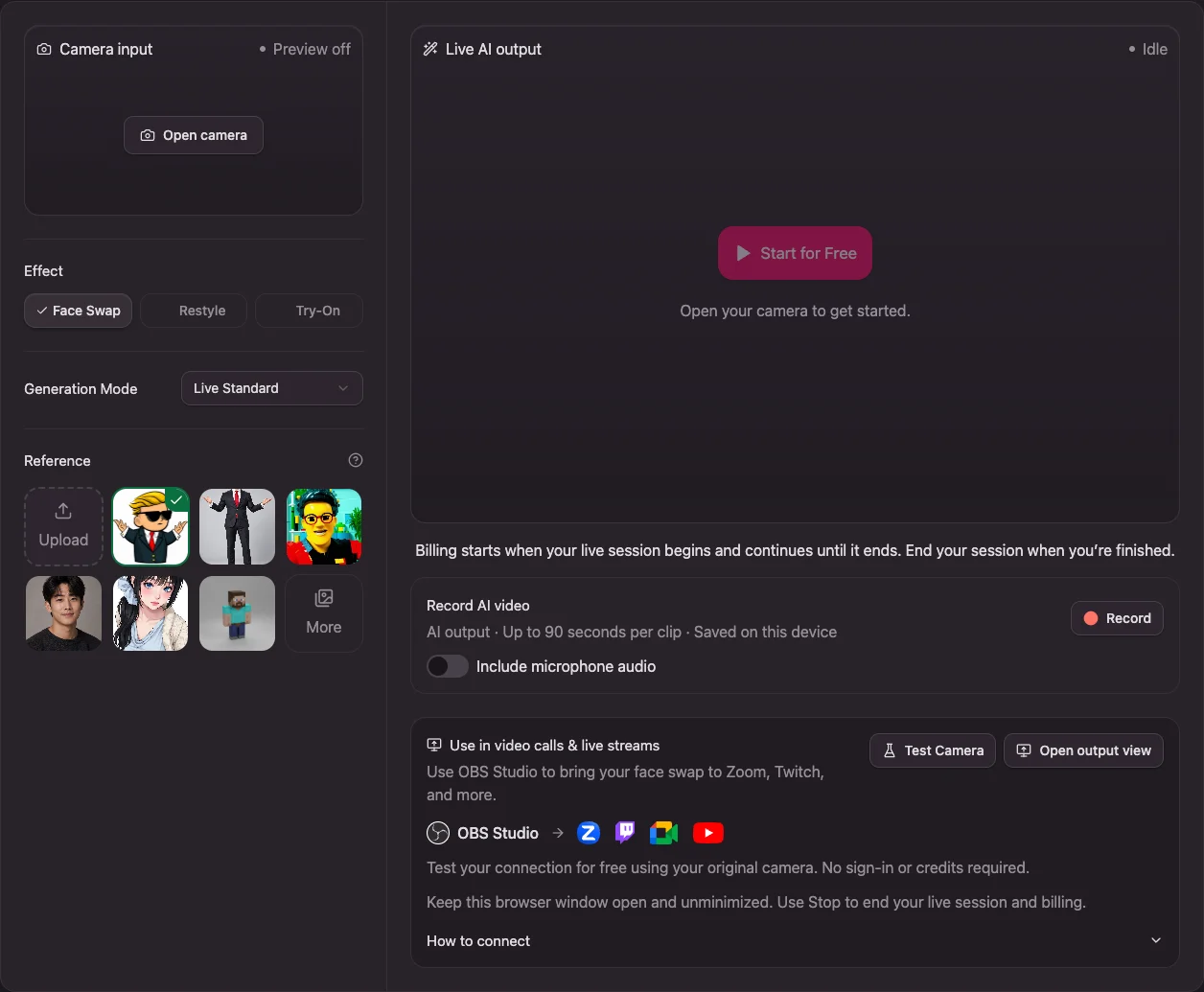
Open your camera
In the browser studio, click Open camera. In the Windows app, click Enable camera and select your physical webcam. Allow camera access when asked, then check that the input preview responds to movement.
Opening your camera alone does not start AI or spend AI credits. In Windows, keep Live Face Swap AI Camera for output to other apps; choose your actual webcam as the input.
Choose your reference
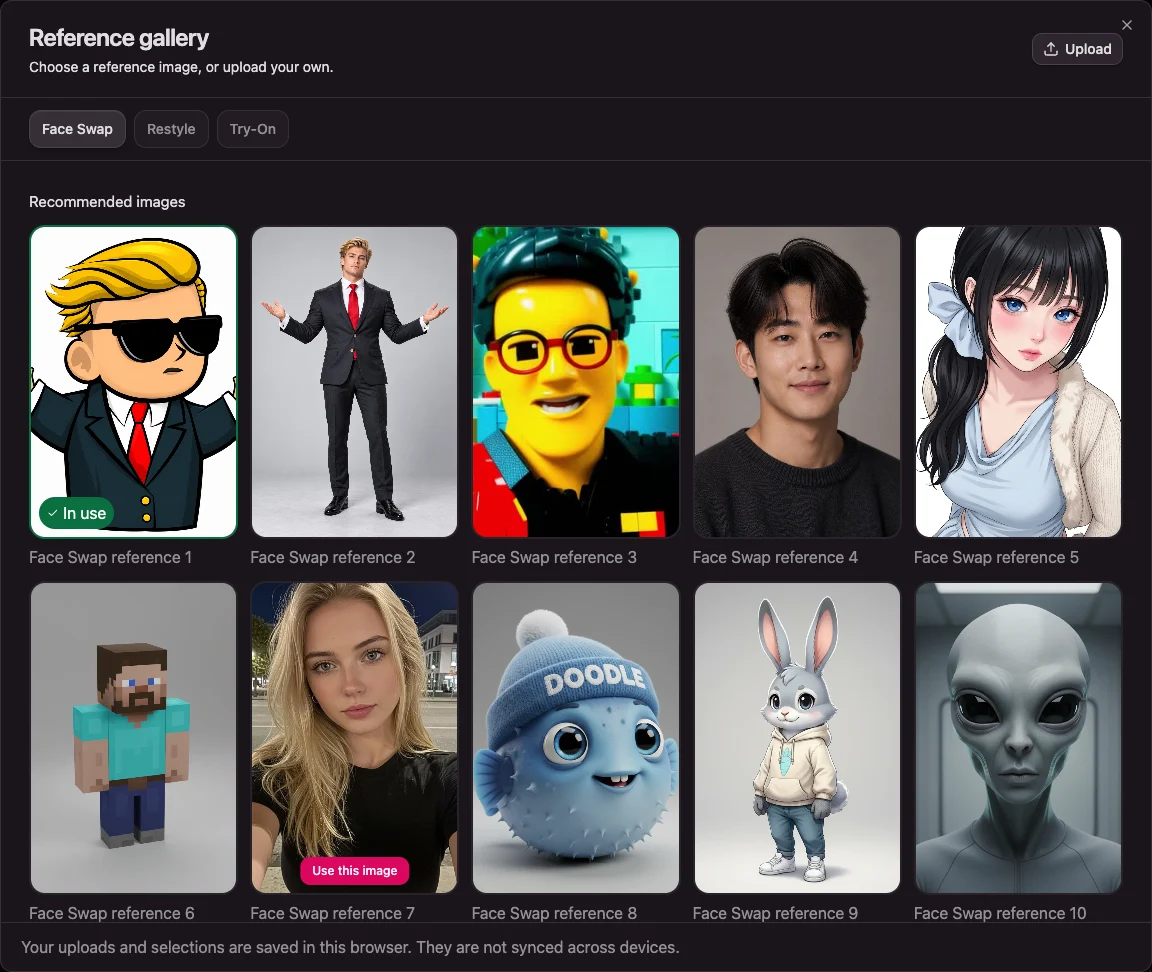
Select Face Swap, then choose a built-in reference. Open More to browse the gallery, or Upload your own JPG, PNG, or WebP image up to 10 MB. For your first attempt, choose a clear, front-facing portrait with one easily visible face.
Your reference supplies the look; your camera supplies the expression and movement. A reference thumbnail is a selection, not a preview of the final AI result.
Start and check the transformation
Sign in, review Generation Mode and its displayed credit rate, then click Start Face Swap. Wait for moving AI output. Smile, speak, and turn your head slowly to see how the reference responds to your performance.
To try another identity within Face Swap, choose a different reference and wait for the update. The studio also offers Restyle for changing the visual style and Try-On for outfit references. Stop the current AI session before switching effect types.
AI sessions use credits. Billing can begin when resources are allocated, before the first output frame appears. Review the current rate before starting and stop the session when you finish. See Pricing for available credit packs.
Check external connections for free
If you plan to use OBS or a calling app, set up the connection with Test Camera first. It works without sign-in or AI credits and sends your original webcam video, without AI effects. Use a private preview while configuring it.
Passing this test confirms your camera connection. Stop the test and start a real AI session to check face-swap quality, delay, and audio timing before sharing the result.
3. Use your AI look where you want
Explore and have fun
You can stay in the studio and try different faces or characters. Watch how each responds to your expressions, or plan a short performance around a particular look. OBS is only needed if you want to route browser video into other apps; it is not required to watch the AI preview.
Record a clip or character video
For a quick browser clip, use Record AI video after purchasing credits. In a supported browser, it records up to 90 seconds per clip, with optional microphone audio. Allow microphone access if you include your voice, then preview and download the result before leaving the page. Clips are not saved to your account.
To perform several roles, record one character's lines, switch references, and record the other character separately. You can edit the clips together afterward. For longer recordings or a composed scene, use OBS: capture the browser output, or select Live Face Swap AI Camera from the Windows app. Configure microphone audio in OBS separately.
Stream with OBS
Keep your existing OBS scenes and add the AI video as a source:
- Browser: open the studio's output view, capture that browser window in OBS, and crop to the outlined video frame.
- Windows: add a Video Capture Device source in OBS and select Live Face Swap AI Camera.
Check the actual AI output and microphone in a local recording before broadcasting. OBS can then send your scene to Twitch, YouTube, or your configured streaming service. OBS Virtual Camera is not required just to stream from OBS.
Follow the browser OBS setup or Windows OBS setup for the full steps.
Join a meeting or video chat
In your calling app's video settings, select the camera for your setup:
- Browser: keep OBS capturing the output view, start OBS Virtual Camera, then choose OBS Virtual Camera in the calling app.
- Windows: choose Live Face Swap AI Camera directly in a compatible calling app.
These camera outputs carry video. Select your usual microphone separately in Zoom, Meet, Teams, or your other calling software. Check the receiving app's preview, including speaking and movement, before enabling video for others.
Use the browser meeting instructions or Windows meeting instructions for app-specific steps.
4. Get better results
- Start with a clear reference. Use one visible face with minimal obstruction. Try a straightforward portrait before experimenting with more unusual characters.
- Light your face evenly. Avoid strong backlighting and keep your face visible to the webcam.
- Begin with gentle movement. Check smiles, speech, and slow head turns before larger gestures or rapid motion.
- Use a stable connection. Both versions process AI video in the cloud, so network conditions affect the experience.
- Check the destination. A good studio preview does not confirm your OBS crop, selected meeting camera, or audio timing. Review those where you will actually use the video.
For browser window capture, keep the output window open and unminimized, with its output tab selected. Hide the OBS source before returning to studio settings, refreshing, or switching tabs in the captured window. The Windows client can remain minimized while sending virtual-camera video.
5. Finish your session and save your video
When you are done, stop your recording or broadcast, then stop the AI session in Live Face Swap AI and wait for it to return to its ready state. Stopping a recording, leaving a meeting, hiding an OBS source, or stopping OBS Virtual Camera does not end the AI session or its credit usage. Returning from browser output view to the studio also leaves an AI session running.
Download browser clips before navigating away or refreshing. For OBS recordings, check the recording folder you configured in OBS.
Common questions
Do I need OBS?
You can preview AI effects and make supported short recordings in the browser without OBS. Browser output needs OBS to reach other video apps. The Windows app can connect directly to compatible meeting apps through its built-in virtual camera; use OBS when you want streaming, scene composition, or OBS recording.
Why am I seeing my original face?
Check whether Test Camera is running: that test deliberately sends the original webcam feed. Stop it and start Face Swap for AI output. In the receiving app, confirm that you selected the virtual camera for your setup rather than your physical webcam.
What if the camera or output does not work?
Check camera permissions and close other apps using your physical webcam. After installing the Windows app, reopen receiving apps so they can discover the virtual camera. For detailed fixes, see browser troubleshooting or Windows troubleshooting.
Ready to try your first look? Open the browser studio or download the Windows app.