
How do I swap faces live with my webcam?
Choose Face Swap in the studio, select a reference portrait, and open your camera. Sign in and start the live effect with available credits. Your camera input and AI output appear side by side.
Transform yourself into a realistic face, an anime hero, or a fantasy character with live face swap AI, using a reference image to reimagine your webcam feed as you smile, speak, and move.
Choose a face you want to become and see your camera input beside the live AI transformation. Try a smile, turn your head, or act out a scene—then change the reference to take the same performance in a new direction.
Open your camera to get started.
Billing starts when your live session begins and continues until it ends. End your session when you’re finished.
AI output · Up to 90 seconds per clip · Saved on this device
Recording requires a browser with video recording and local storage support. Try desktop Chrome or Edge.
Change your face or character using a reference image, with your live movements and expressions.
Change your outfit on camera. Use a reference image to try suits, costumes, armor, and more.
Change the look of your whole camera feed with styles like anime, clay, and painting.
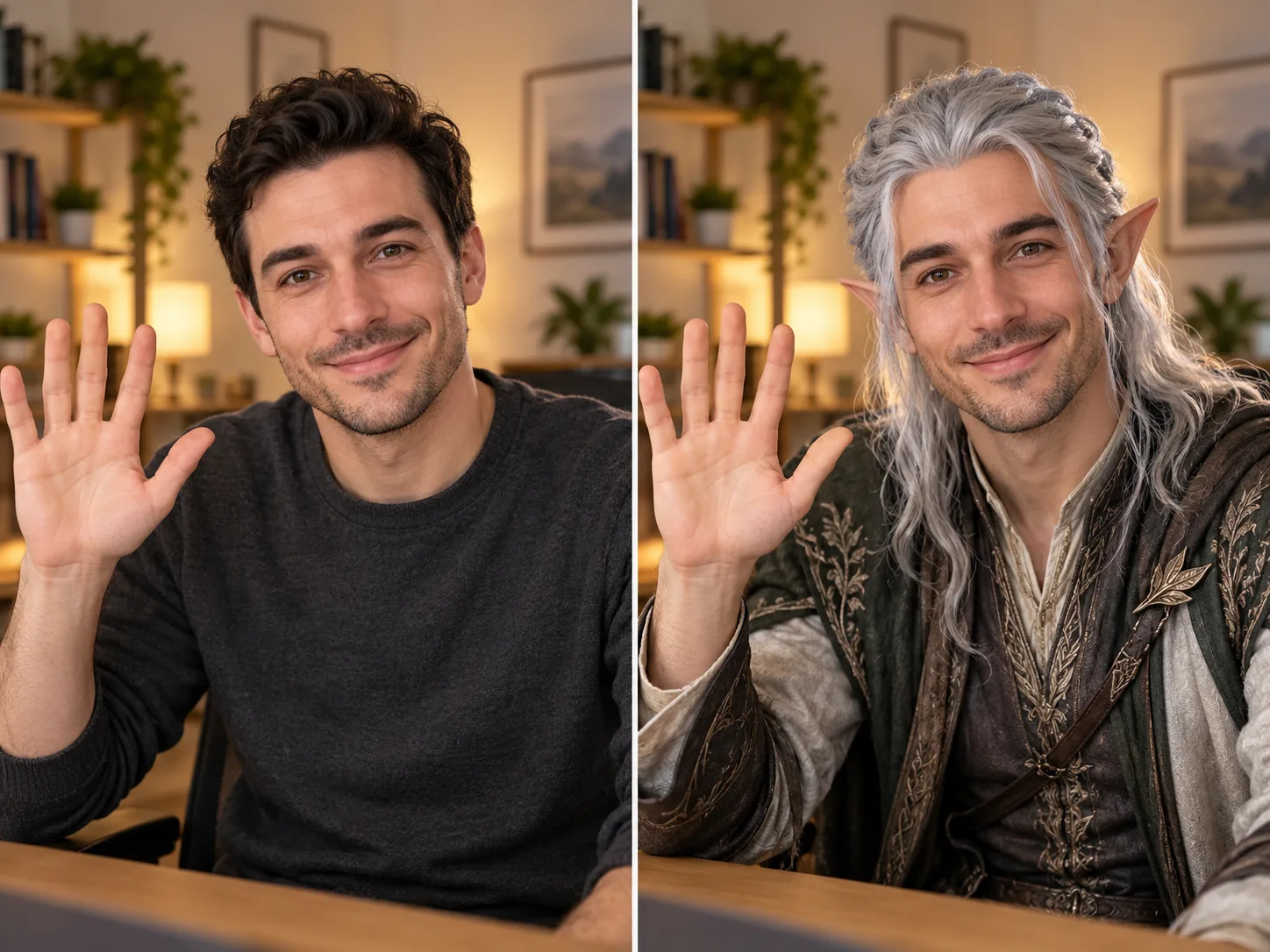
Live face swap transforms the person in your webcam feed into a different identity while the camera is running. A reference portrait guides the appearance, and your live expressions and movements drive the performance—so you can see a new character react as you do.
Start by changing who appears on camera. Then explore what they wear and how their world looks, with three reference-driven effects in one live studio.
Give an anime hero your grin or see a fantasy character react to your next head turn. Live face swap uses your reference portrait to guide a new identity while your webcam provides the expressions and movement, giving you room to experiment with character ideas and short performances.
AI concept illustration. See live effects in the demos above.
See how a sharp suit, a dramatic coat, or a suit of armor changes your presence on camera. Use an outfit image to guide the live transformation, then move and pose to explore the look as part of a performance or a costume idea.
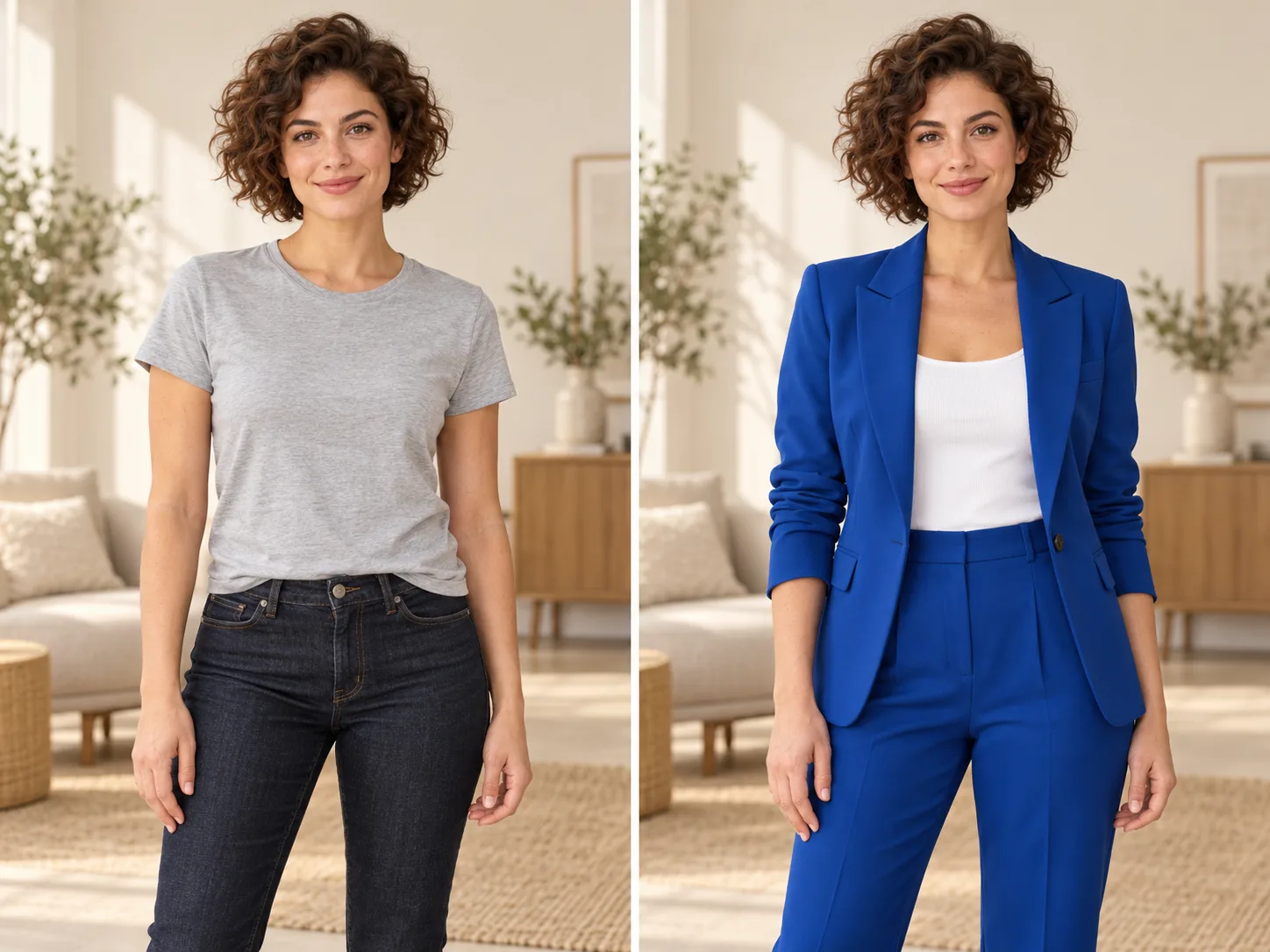
AI concept illustration. See live effects in the demos above.
Turn a familiar camera scene into an illustrated frame or a world of handcrafted textures. Restyle uses a reference image to guide the look of the whole scene, letting you explore how the same movements feel in an animated, painted, or clay-inspired setting.
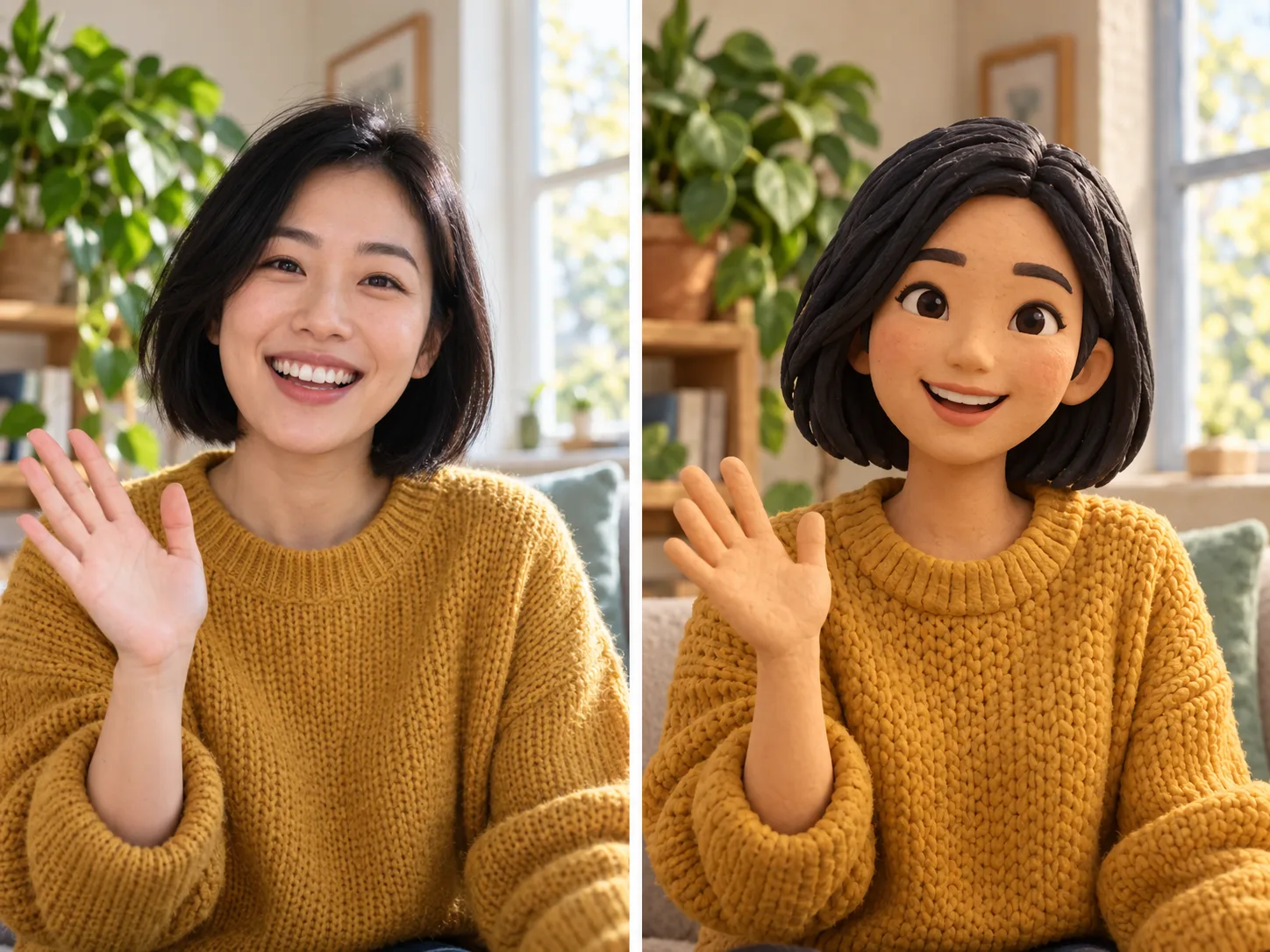
AI concept illustration. See live effects in the demos above.
Choose the identity you want to explore, get your camera ready, and bring the character to life with your own expressions.
Select Face Swap and pick a recommended image, or upload a clear, front-facing portrait in JPG, PNG, or WebP format, up to 10 MB.
Allow camera access and check your framing. Use even lighting and keep your face clearly visible for a better starting point.
Sign in, make sure you have credits, and start the live effect. Try different expressions or references, then stop the session when you are finished.
How references work, what you need to start, and how credits and recordings are handled in the browser studio.
Choose Face Swap in the studio, select a reference portrait, and open your camera. Sign in and start the live effect with available credits. Your camera input and AI output appear side by side.
Yes. Upload a JPG, PNG, or WebP image up to 10 MB, or choose a recommended reference. For face swaps, start with a clear, front-facing portrait. The result depends on your reference, lighting, and camera framing.
Yes. The studio includes Try-On for outfit changes and Restyle for visual transformations. Stop your current live session before switching effects. Each effect has its own recommended images and uploaded references.
No installation is needed for the online studio. You use your camera and view the live AI result directly in your browser. An internet connection and camera permission are required.
You can watch the demo videos and preview your camera without starting a paid live session. Live AI processing requires available credits. One-time credit packs are listed on the pricing page.
Billing starts when resources are allocated to your live session, which may happen before the first output frame appears. The studio displays the credit rate before you start. Stop the session when you are finished; purchased credits are valid for one month.
Yes. In a supported browser, you can record up to 90 seconds of the AI output and download the clip to your device. Recordings contain video only, without audio, and are not saved to your account. Download your clip before leaving the page; desktop Chrome or Edge is recommended.
Your reference library and selections are saved in this browser and are not synced across devices. Starting a live session sends the selected reference and camera stream to our processing provider. You can delete uploaded images from the gallery; see the privacy policy for more details.
An anime hero with your smile. A fantasy character with your expressions. Choose a reference, step in front of the camera, and see where your next performance takes you.