
Use the Live Face Swap AI Windows client to choose a reference image, transform your camera feed in real time, and send the result to another video app. Your output appears as Live Face Swap AI Camera in the receiving app's camera list.
This guide covers installation, camera setup, the free camera test, live face swapping, and connecting your output to OBS Studio, Zoom, Google Meet, or Microsoft Teams.
New to the product or choosing between browser and Windows? Start with the Live Face Swap AI step-by-step guide.
Jump to: Install and sign in · Camera and reference · Free test · Live face swapping · OBS Studio · Video meetings · Troubleshooting
Before you start
You will need:
- Windows 11 x64, build 22000 or newer.
- A built-in or USB webcam.
- An internet connection for sign-in and live AI effects.
- A Live Face Swap AI account with credits to use AI effects. The free camera test does not require sign-in or credits.
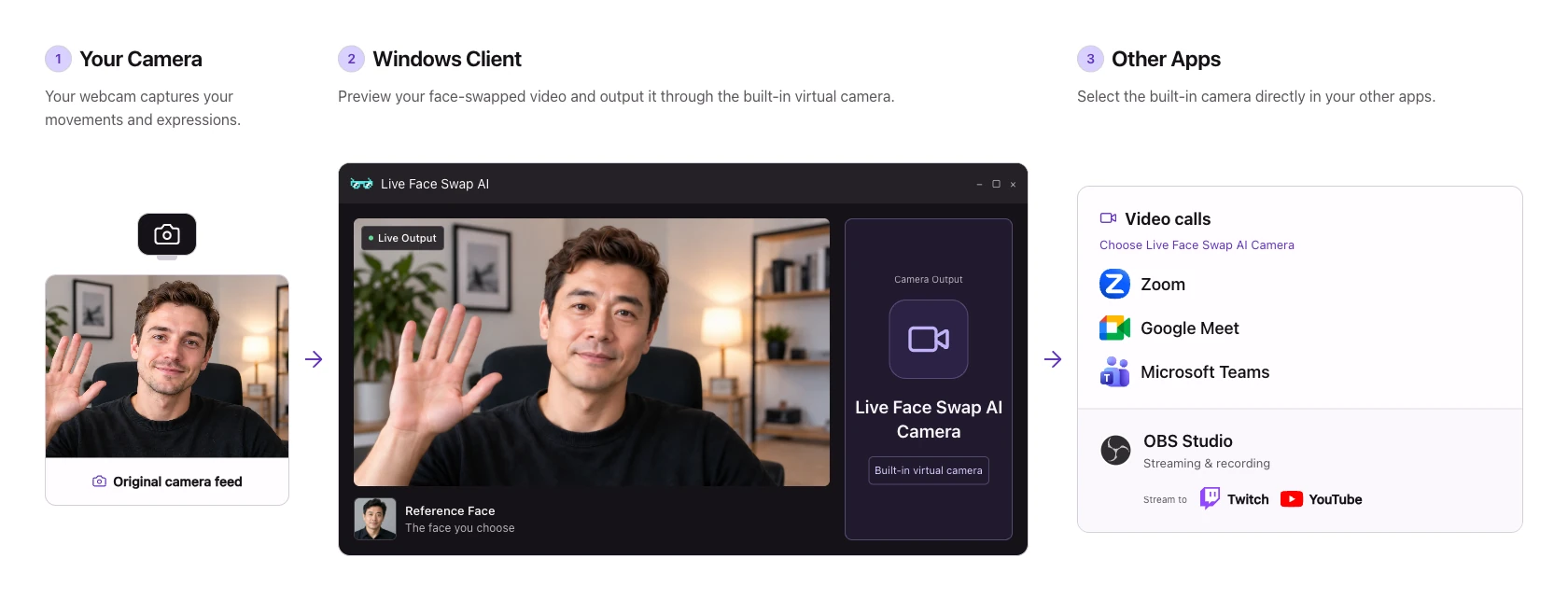
The connection works like this:
Your webcam → Live Face Swap AI → Live Face Swap AI Camera → OBS or your meeting app.
Choose your physical webcam inside the client. Choose Live Face Swap AI Camera in the app that receives the video. You do not need OBS to use the client with a meeting app.
1. Install and sign in
Install the Windows client
- Close video apps that may be using your camera.
- Open your Live Face Swap AI Windows installer and follow the setup prompts. Allow the installer to make changes when Windows asks; setup installs the app and its virtual camera.
- Open Live Face Swap AI from your desktop or Start menu.
If OBS or a meeting app was already open during installation, restart it so it can find the new camera.
Connect your account
- Click Sign in in the client.
- Complete sign-in in the browser window that opens.
- Continue to the desktop app and allow your browser to open Live Face Swap AI when prompted.
- Return to the client and check your credit balance in the lower-left account area.
If the browser does not return you automatically, click Open Live Face Swap AI on the browser page. Start a fresh sign-in from the client if the link has expired.
2. Set up your camera and reference image
Enable your input camera
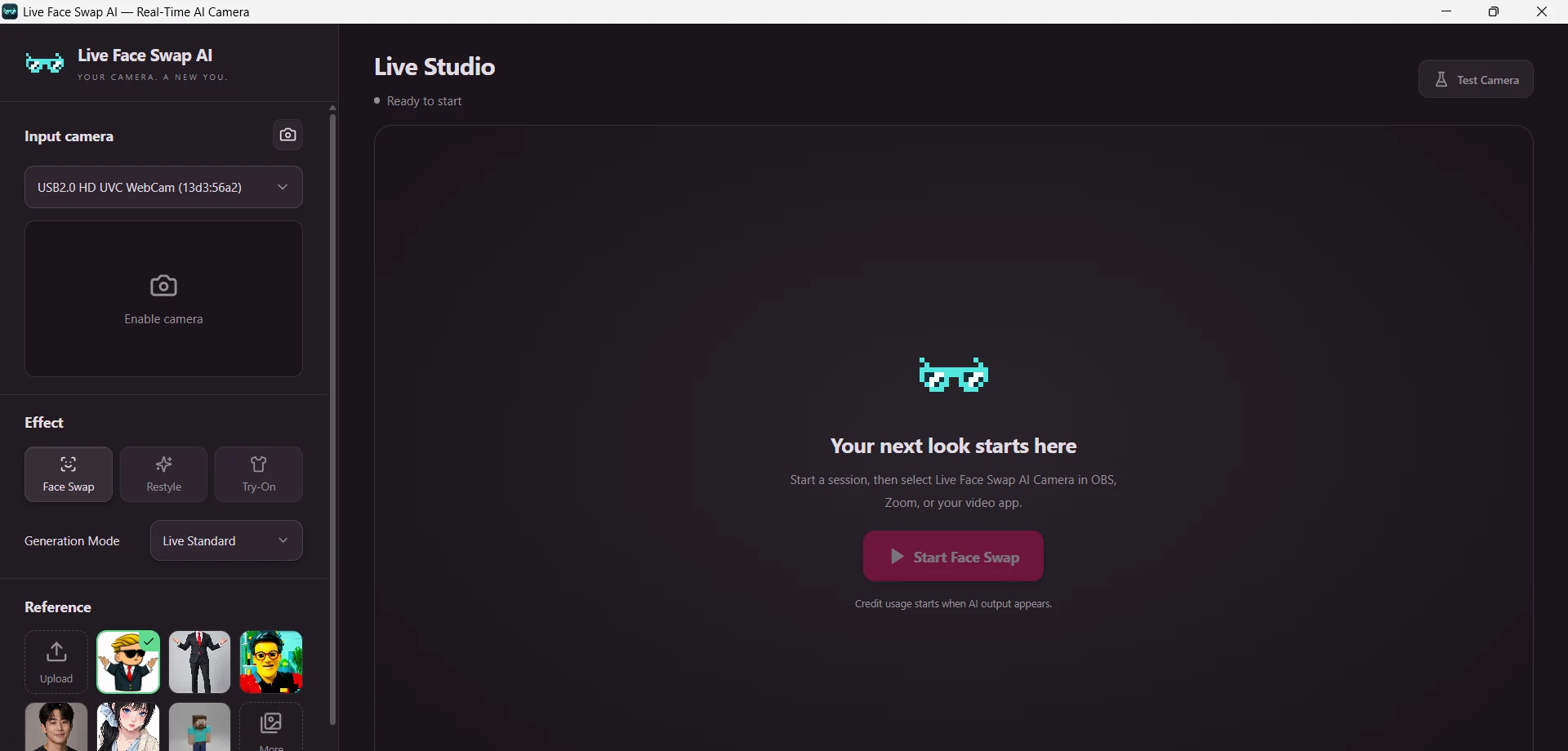
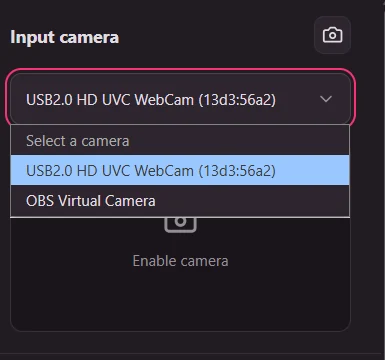
Click Enable camera under Input camera. If Windows asks for camera access, allow it. Use the camera dropdown to select your built-in or USB webcam, then check its preview.
Do not choose Live Face Swap AI Camera as the input: that device is the client's output. Position your webcam so your face is visible and evenly lit.
Choose your look
- Select Face Swap under Effect.
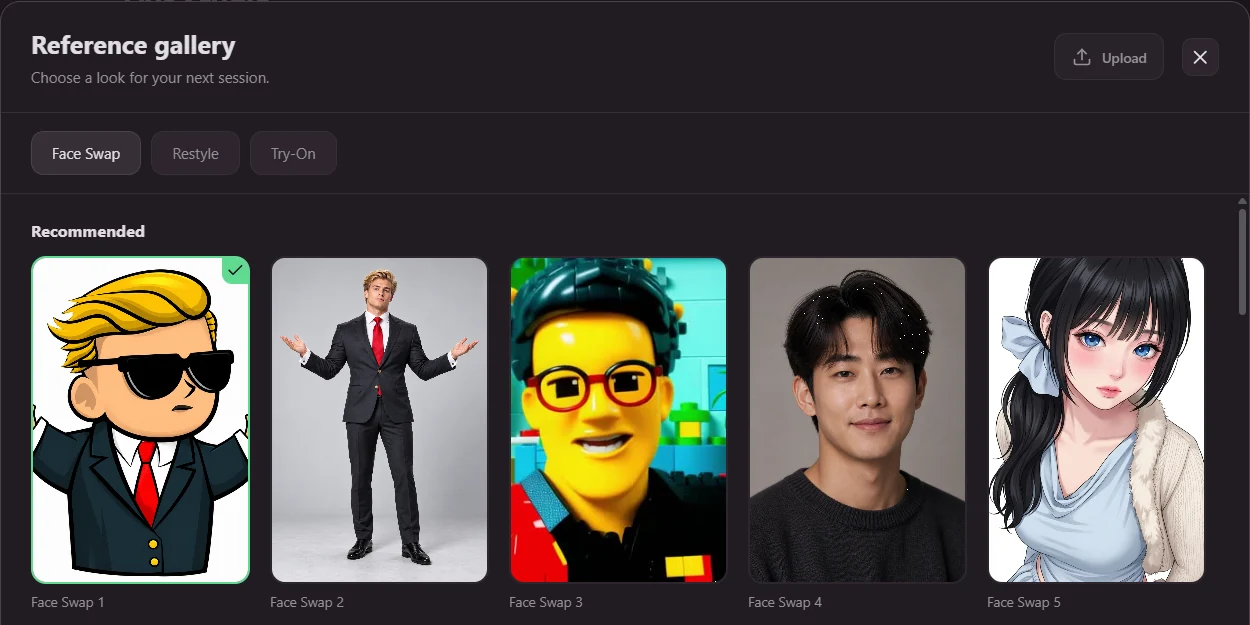
- Under Reference, click a built-in thumbnail, or click More to browse the reference gallery.
- To use your own image, click Upload and choose a JPEG, PNG, or WebP image up to 10 MB.
- Check the selected thumbnail. For a face reference, start with a clear image where the face is easy to see.
Uploaded reference images are saved in the library on this device. Open Generation Mode to review the available mode and its displayed credit rate before starting.
3. Check the connection with the free camera test
The camera test helps you connect the client to OBS or a meeting app before starting an AI session.
- Enable your input camera.
- Click Test Camera at the top right.
- In the receiving app, choose Live Face Swap AI Camera using the instructions below.
- Check that your camera image appears and moves as expected.
- Click Stop Test in the client when finished.
Test Camera sends your original webcam video, without AI effects. It uses no AI credits. Use it in a preview before a call or stream if you do not want others to see your original camera feed.

After stopping, the receiving app shows CAMERA PAUSED. Your input preview can remain visible in the client; an input preview alone does not send video to other apps.
4. Start and stop live face swapping
- If the camera test is running, click Stop Test.
- Confirm your input camera, reference image, and generation mode.
- Click Start Face Swap.
- Wait for the AI output to appear in the main preview.
- Keep the client open while you use the output in another app. You can minimize it.
To change your reference during the session, choose another thumbnail or open More and select another image. Wait for the update to take effect. If an update fails, the previous reference stays selected.
Click Stop in the client to end the AI session. Wait for it to return to Ready to start. The receiving app returns to CAMERA PAUSED instead of switching to your original webcam.
Credits and session control
AI credit usage can begin when session resources are allocated, before the first output frame appears. Review the rate shown under Generation Mode and your balance in the account area. To add credits, open the account menu and choose Get credits; after returning from the website, use Refresh account to update the displayed balance.
Stop the session in Live Face Swap AI when you are finished. Closing OBS, hiding an OBS source, or turning off video in a meeting app does not stop the AI session in the client.
5. Use Live Face Swap AI in OBS Studio
If you do not have OBS, download the Windows installer from the official OBS Studio website, install it, and open it. If you already use OBS, go straight to adding the camera source.
Add a Video Capture Device source
- Open the scene where you want your camera to appear.
- In Sources, click +.
- Choose Video Capture Device. If OBS opens an Add Source browser, select that category, then choose Add a new Video Capture Device. In versions with a name dialog, enter a name such as Live Face Swap AI and click OK.
- In the source's properties, open the Device dropdown.
- Select Live Face Swap AI Camera. The device name may include an extra Windows virtual-camera suffix.
- Start with Resolution/FPS Type: Device Default. For a custom setting, use 1280 × 720 and 30 FPS.
- Click OK.
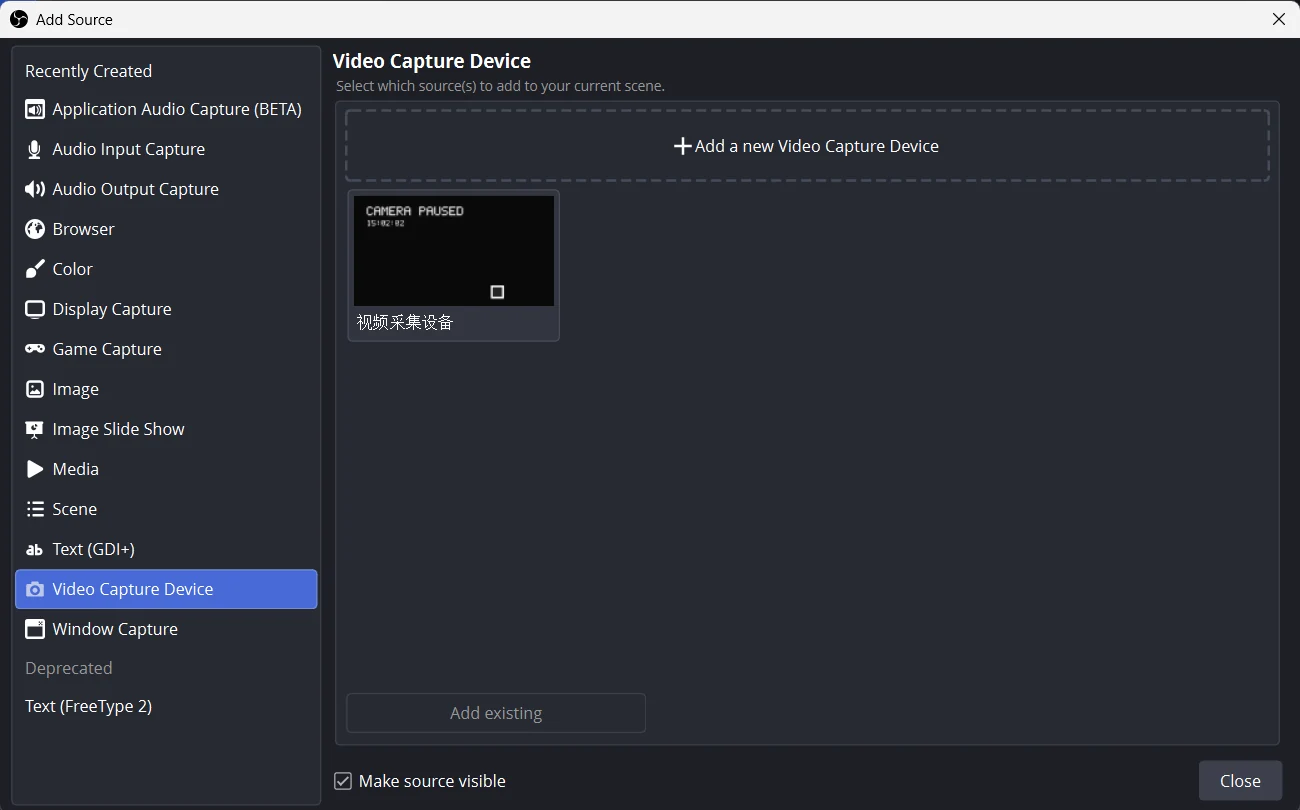
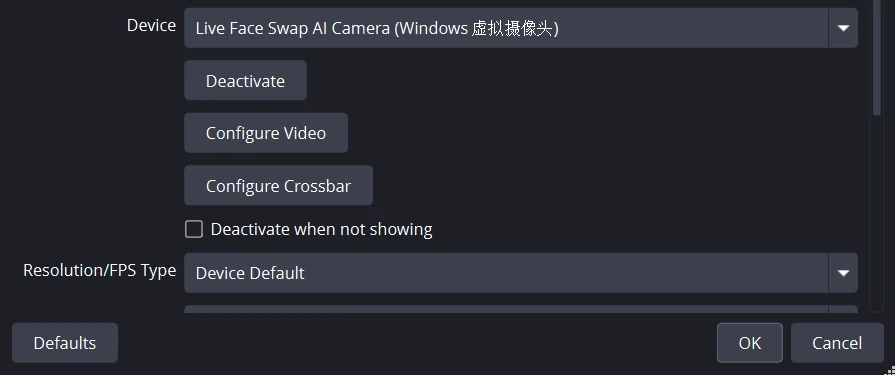
These steps use OBS's Video Capture Device source, which receives video from a camera device.
Fit the video into your scene
Select the source in Sources, then right-click its preview and choose Transform → Fit to Screen. You can also drag and resize it to place the video within your existing scene. Check that the source's visibility eye is on and that another source is not covering it.
The virtual camera outputs a 1280 × 720, 30 FPS video stream. Your OBS canvas can use a different size; fit or resize the source to suit your layout. The output format does not mean every AI mode generates 30 new images per second.
Switch from the free test to AI output
Use Test Camera in the client to check the OBS connection. When ready, click Stop Test, select your reference, and click Start Face Swap. OBS keeps the same camera selection and receives the new AI output.
Leave Live Face Swap AI running while OBS receives the video. Set your microphone separately in OBS; the virtual camera supplies video, not microphone audio. For recording, streaming, and audio setup beyond the camera connection, see the OBS Quick Start Guide.
You do not need to click Start Virtual Camera in OBS to receive Live Face Swap AI video. That OBS button sends OBS's own scene out as a separate virtual camera. For the setup in this guide, OBS is the receiver.
6. Use the virtual camera in video meetings
Start your AI session in the Windows client, then select Live Face Swap AI Camera as the camera in your meeting app. You can connect directly without opening OBS. Keep your usual microphone and speaker selections.
Check your video preview before joining or enabling video for others. If you use the free camera test instead, that preview will show your original webcam video.
Zoom
- Open the Zoom desktop app and go to Settings → Video & effects.
- Under Camera, choose Live Face Swap AI Camera.
- Check the preview, then join your meeting and turn on video.
During a meeting, use the arrow next to Video to select the camera or open Video settings. See Zoom's camera and video settings instructions if your version uses different labels.
Google Meet
- Open Google Meet in your browser and allow camera access when prompted.
- Open Settings → Video.
- Under Camera, choose Live Face Swap AI Camera.
- Check the preview before joining, or return to your call and turn on video.
Google's camera settings guide explains where to change the selected camera. If you installed the Windows client while Meet was open, reload the Meet page and select the device again.
Microsoft Teams
- In the Teams desktop app, open Settings and more (…) → Settings → Devices.
- Find the video settings and choose Live Face Swap AI Camera from the Camera dropdown.
- Check the preview, then select your camera and turn on video on the meeting's pre-join screen.
See Microsoft's Teams device settings guide for the current settings layout. Keep the Windows client running for the duration of your AI video session.
Troubleshooting
Live Face Swap AI Camera is missing from the camera list
Close and reopen OBS or your meeting app, then check its camera list again. For Google Meet, reload the browser tab. If the device is still missing, close video apps and reinstall the Live Face Swap AI Windows client so setup can install the virtual camera.
My physical webcam will not open
Close other apps that are using the physical webcam, then enable it again in Live Face Swap AI. In Windows Settings → Privacy & security → Camera, make sure camera access and access for desktop apps are allowed. Reconnect a USB webcam if necessary.
The receiving app should select Live Face Swap AI Camera so it does not compete with the client for the physical webcam.
OBS or my meeting app shows CAMERA PAUSED
The virtual camera is available, but there is no active client output. Enable the input and start Test Camera or Start Face Swap. Seeing the input preview in the client is not enough to publish video.
The client has a preview, but OBS is black
Double-click the Video Capture Device source in OBS and confirm the selected Device. Make sure the source is visible and active, then try Deactivate → Activate in its properties. Start with Device Default settings and use Transform → Fit to Screen if the source is outside the visible canvas.
I see my original face instead of the selected reference
If the client says Camera test or Original camera feed, you are in the free test. Click Stop Test, select your reference, and click Start Face Swap. Also check that the receiving app has selected Live Face Swap AI Camera, rather than your physical webcam.
The browser finishes sign-in, but the client is still signed out
Allow the browser to open Live Face Swap AI, or click Open Live Face Swap AI on the return page. If that does not complete sign-in, return to the client and start Sign in again.
The AI session disconnects
Check your internet connection and the message shown in the client. Reconnect your camera if it was unplugged, or add credits if the account needs them, then start a new session. When AI output stops, the virtual camera returns to its paused display; it does not automatically send the original webcam video.