
Use Live Face Swap AI in your desktop browser to transform your webcam video in real time. Open your camera, choose a reference image, and start a live session. You can watch the result on the website or use OBS Studio to bring it into video calls and live streams.
This guide takes you through the browser setup, the free camera test, OBS window capture, and connecting to Zoom, Google Meet, Microsoft Teams, Twitch, and YouTube.
New to the product or choosing between browser and Windows? Start with the Live Face Swap AI step-by-step guide.
Jump to: Browser setup · Free camera test · OBS setup · Start AI · Video meetings · Streaming and recording · Troubleshooting
Before you start
You will need a webcam, an internet connection, and desktop Google Chrome or Microsoft Edge on Windows or macOS. To start AI effects, sign in to a Live Face Swap AI account with available credits. The free camera test does not require sign-in, a reference image, or credits.
OBS is needed when you want to send the browser output to another app. You can use the AI preview on the website without installing OBS.
| What you want to do | Connection |
|---|---|
| Try live effects on the website | Webcam → Live Face Swap AI in your browser |
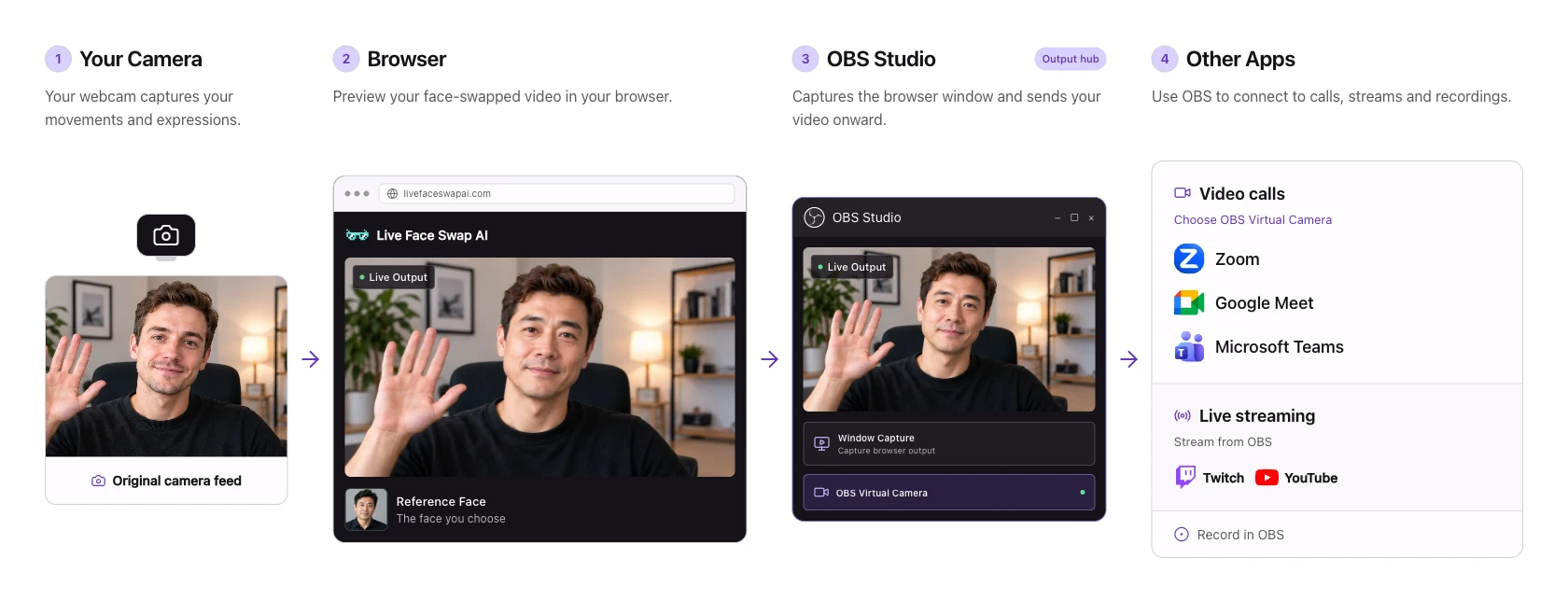
| Use your output in a meeting | Browser output → OBS window capture → OBS Virtual Camera → Meeting app |
| Stream to Twitch or YouTube | Browser output → OBS window capture → OBS streaming output |
The browser version uses OBS to capture an output view in your existing browser window. In meeting apps, you will select OBS Virtual Camera. You do not need to install the Live Face Swap AI Windows client to follow this guide.
1. Set up your camera and reference
Open the browser studio
- Open Live Face Swap AI in Chrome or Edge.
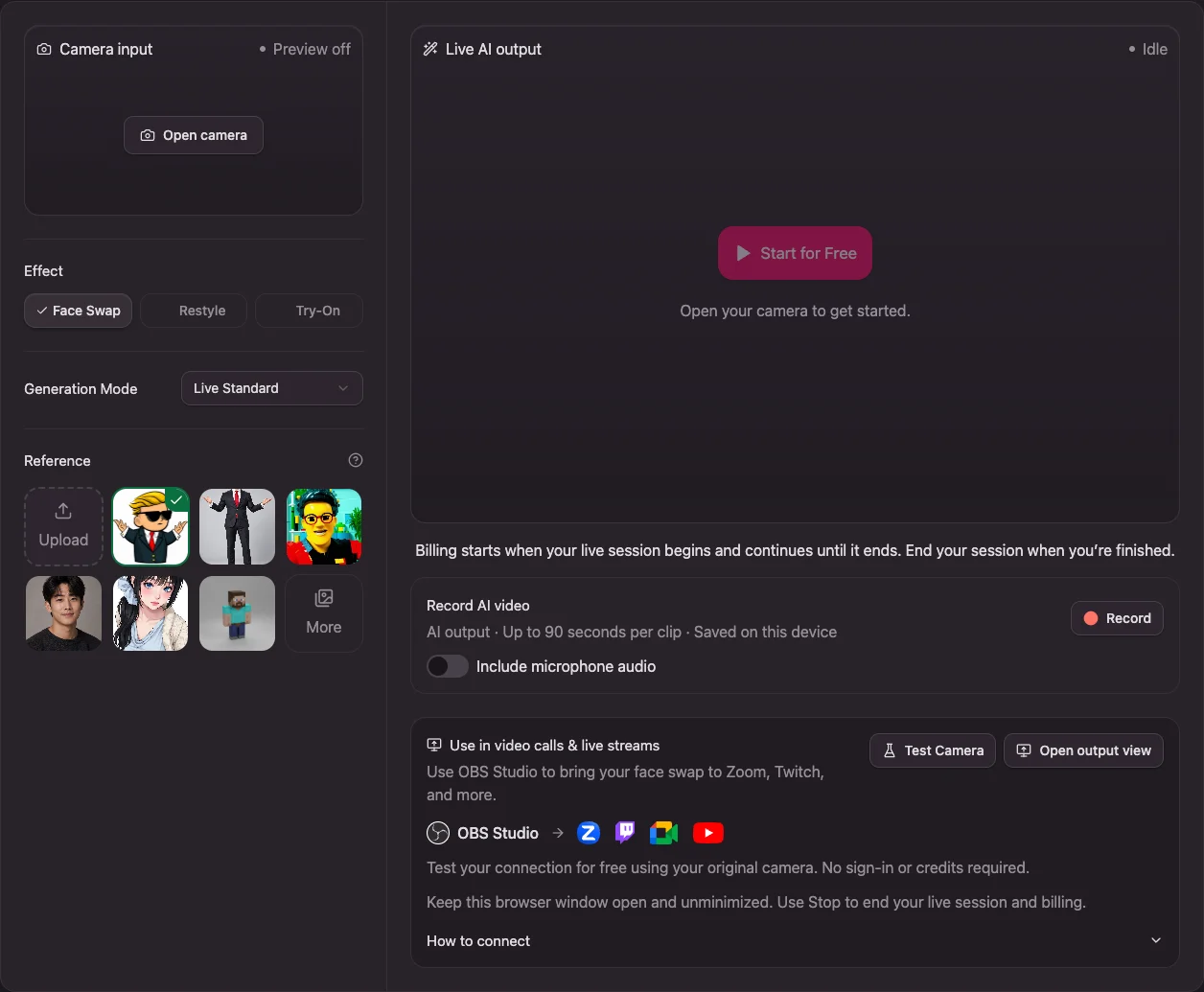
- Click Open camera in the Camera input panel.
- Allow camera access when your browser asks. If your operating system also asks, allow your browser to use the camera.
- Check that the input preview shows your webcam and responds to movement.
The input preview shows your original camera. Opening it does not start an AI session or use AI credits. The browser requests video for this input; your meeting microphone is configured separately later.
Choose an effect and reference
- Under Effect, choose Face Swap.
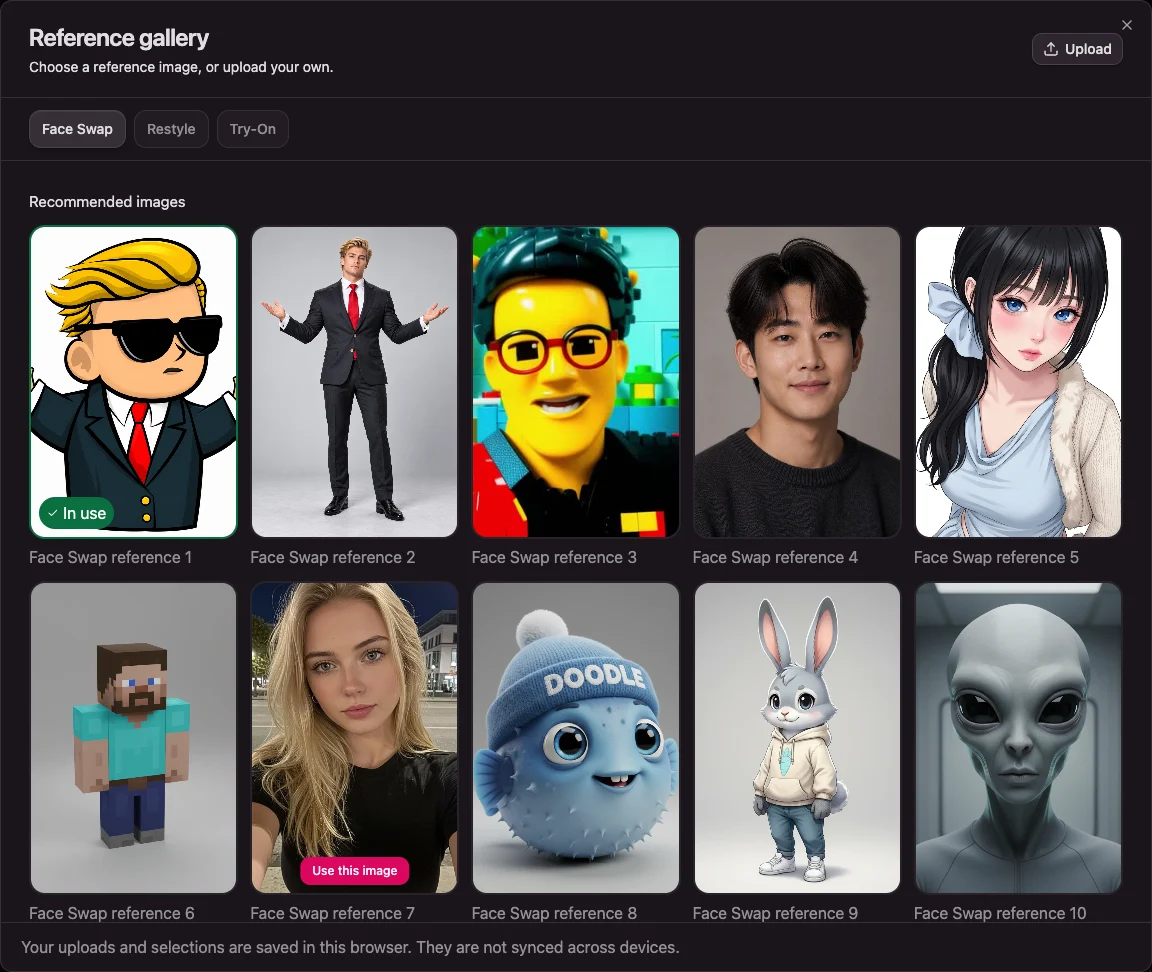
- Click a reference thumbnail, or click More to open the reference gallery.
- To use your own reference, click Upload and choose a JPG, PNG, or WebP image smaller than 10 MB.
- Check the selected thumbnail, then review Generation Mode and the displayed credit rate.
For Face Swap, start with a clear, front-facing portrait and keep your own face visible and evenly lit. The studio also offers Restyle for a visual style and Try-On for an outfit reference. Stop the current AI session before switching effect types.
Your uploaded reference library and selections are stored in this browser, rather than synced across devices.
If you only want to try the AI preview on the website, skip ahead to Start and stop live face swapping. For OBS, meetings, or streaming, set up the connection with the free test first.
2. Try the free camera test
The free test lets you set up window capture and check that another app receives moving video before starting AI.
- Open your camera in the studio.
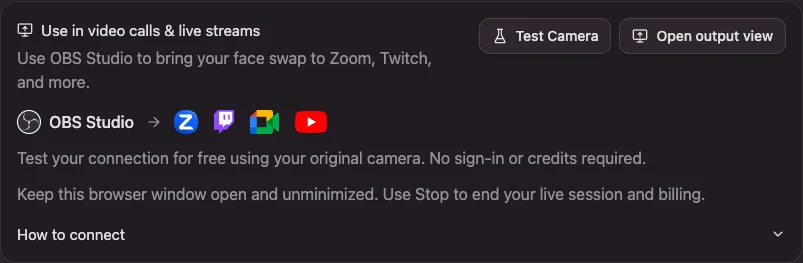
- Find Use in video calls & live streams below the AI preview.
- Click Test Camera.
- The browser switches to an output view. The bottom bar reads Camera test · Original camera feed and offers Stop Test.
- Leave this view open while you set up OBS. If you plan to use a meeting app, check its camera preview as well.
Test Camera sends your original webcam video, without AI effects. It requires no sign-in or credits. Keep your meeting camera off and your stream stopped while you configure it if you do not want others to see your original feed.

Click Stop Test when you finish. The output view stays open, and your studio camera input remains available. To return to the settings, hide the source in OBS first, then click Back to studio; returning also ends the test.
Passing this test confirms the connection you checked. It does not test AI generation, face-swap quality, or AI latency. Before an actual call or stream, start a real AI session and check its picture and audio timing in the receiving app.
3. Connect the browser output to OBS Studio
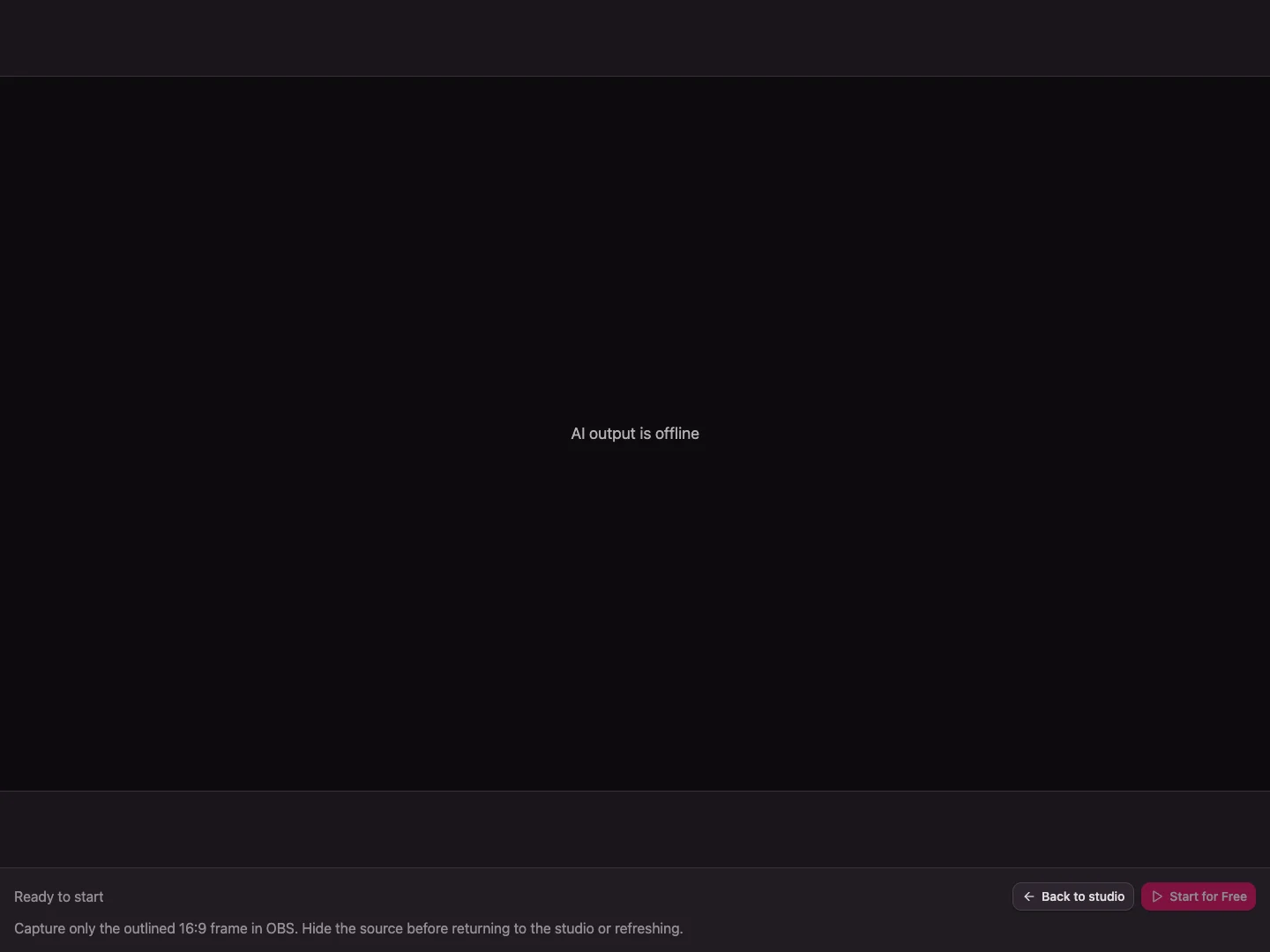
Install OBS Studio from the official download page, then open it. You can configure OBS while Test Camera is running, or click Open output view and configure it with the AI output is offline placeholder. Neither requires a paid AI session.
The output view uses the same browser window. Its title becomes Live Face Swap AI — OBS Output, and a bordered 16:9 video frame appears above the controls.
On Windows: add Window Capture
- In OBS, choose the scene where you want the video.
- In Sources, click + and choose Window Capture.
- Create a source named Live Face Swap AI Browser.
- In Window, select the Chrome or Edge window titled Live Face Swap AI — OBS Output.
- Set Window Match Priority to Window title must match.
- Turn off Capture Cursor, check the preview, and click OK.
Depending on your OBS version, you may see an Add Source browser before the source-name dialog. Choose the category and add a new source. The title-match setting helps OBS avoid falling back to another browser window if the intended window disappears. See the OBS Window Capture documentation.
On macOS: add macOS Screen Capture
- If prompted, allow OBS to record your screen in macOS System Settings. Reopen OBS if macOS asks you to.
- In your scene's Sources, click + and choose macOS Screen Capture.
- Create a source named Live Face Swap AI Browser.
- Set Method to Window Capture.
- In Window, choose the browser window titled Live Face Swap AI — OBS Output.
- Turn off Show cursor, check the preview, and click OK.
If the window is missing, confirm the browser is in output view and not minimized. Reopen the source properties to refresh the list; if necessary, enable Show fullscreen and hidden windows / applications. The modern macOS source supports selecting a single window; see OBS macOS Screen Capture.
Crop to the video frame
At first, OBS may show browser toolbars, empty space, and the bottom controls around the video. Remove these from the source:
- Select the source in OBS.
- Right-click its preview and open Transform → Edit Transform.
- Adjust Crop Left, Right, Top, and Bottom until only the video inside the outlined 16:9 frame remains.
- Close the transform dialog, then choose Transform → Fit to Screen for a full-frame scene, or resize and position the source in your existing layout.
- Check all four edges. Browser tabs, the address bar, surrounding space, and bottom buttons should be outside the captured area.
For a simple full-frame scene, use a 16:9 OBS canvas, such as 1280 × 720 or 1920 × 1080, under Settings → Video. The OBS overview explains canvas and output resolution settings.
There is no universal set of crop numbers: window size, browser zoom, and display scaling change the captured rectangle. Once it looks right, keep the browser size and zoom unchanged. The browser output fills its 16:9 frame with a centered crop, so check your head, chin, and movement range as well.
Use window capture for this workflow. Do not paste the website URL into an OBS Browser source. OBS needs to capture the output already running in your Chrome or Edge window.
4. Start and stop live face swapping
Start your AI output
- If the camera test is running, click Stop Test.
- If you still need to sign in or adjust your reference, hide the source in OBS and click Back to studio. Sign in and confirm your camera, effect, reference, and credit rate.
- For use with OBS, click Open output view. Click Start Face Swap in the bottom bar. If you are signed out, Start for Free opens sign-in first; return to output view after signing in.
- Wait for moving AI video and the status Live · Session billing active.
- Check the AI result in OBS, then show the source when you are ready.
If you are using only the website preview, click Start Face Swap in the studio instead. To change the reference within your current effect, return to the studio with the OBS source hidden and choose another image. Wait for the update, then reopen output view and check the result before showing the source again.
Keep the browser window open and unminimized, and stay on its output tab while OBS is using it. If your meeting runs in a browser too, open it in a separate window so the Live Face Swap AI output tab can remain selected.
Stop the AI session
Click Stop Face Swap in the website and wait for the session to finish closing. In output view, the status returns to Ready to start. Use Cancel if you want to stop while it is connecting.
AI credits are used while the live session is active. Hiding the OBS source, stopping OBS Virtual Camera, leaving a meeting, or stopping a broadcast does not end the website's AI session. Back to studio also does not stop an AI session or its billing.
Before returning to the studio, refreshing the page, or switching tabs in the captured window, hide the source in OBS or switch to a scene that does not show it. Window capture can otherwise expose the ordinary webpage or your original camera preview.
5. Use your output in video meetings
Once OBS shows the correct picture, use its virtual camera to make that scene available as a camera device in your meeting app. OBS's Virtual Camera guide describes this feature.
Start OBS Virtual Camera
- In OBS, select the scene with your cropped browser output.
- If you use Studio Mode, make sure the desired scene is in Program, not only Preview.
- Click Start Virtual Camera in the Controls dock.
- Open your meeting app's camera settings and select OBS Virtual Camera.
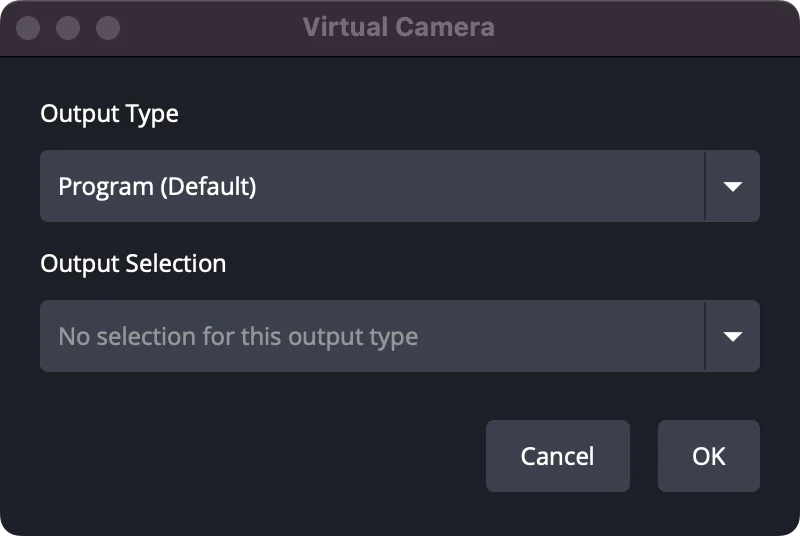
If OBS sends a different scene, click the gear beside the virtual camera button and check Output Type. Program (Default) sends the normal program output. Other modes can be configured to send a fixed scene or source.
On macOS 15, the first use may require enabling OBS under System Settings → General → Login Items & Extensions → Camera Extensions. Earlier macOS versions use a different approval location. Follow the system prompt and OBS virtual camera troubleshooting instructions, then restart OBS. In our macOS setup, reopening OBS after approval was necessary before the camera worked.
Zoom
- Keep OBS Virtual Camera running and open the Zoom desktop app.
- Open Zoom's video settings and select OBS Virtual Camera in the Camera dropdown.
- In a meeting, you can also use the arrow beside Start Video / Stop Video to choose the camera.
- Check the preview, select your microphone separately, and turn on video when ready.
These camera-selection controls are covered in Zoom's camera help. Check the preview before joining so you know Zoom is receiving the OBS scene rather than your physical webcam.
Google Meet
- Keep the Live Face Swap AI output selected in its own browser window and OBS Virtual Camera running.
- Open Google Meet in another window and enter the meeting's pre-join screen.
- Use the camera dropdown below your preview, or open More options → Settings → Video, and select OBS Virtual Camera.
- Select your microphone under the audio settings and check both before joining.
During a meeting, the arrow beside the camera button also opens camera choices. Google documents these controls in Connect your video & audio.
Microsoft Teams
- Keep OBS Virtual Camera running and open Teams on your desktop.
- Go to Settings and more → Settings → Devices.
- Under the video settings, choose OBS Virtual Camera from the Camera dropdown.
- Check your preview and microphone before joining the call.
Teams describes camera selection in Manage your device settings. Menu placement can vary between app versions and account types.
Other meeting apps and audio
For another desktop meeting app that accepts virtual cameras, look for its camera or video input selector and choose OBS Virtual Camera. Check its preview before joining. Device availability can depend on your operating system, app version, and organization settings.
OBS Virtual Camera carries video in this setup. Select your microphone directly in the meeting app. The face-swap pipeline adds processing delay, so test speaking as well as moving. The free original-camera test cannot tell you whether the final AI picture and your voice will be synchronized.
6. Stream or record with OBS
Twitch and YouTube
Streaming uses the same cropped browser source. You do not need to start OBS Virtual Camera just to stream from OBS.
- Open OBS → Settings → Stream and select your streaming service, such as Twitch or YouTube. Complete the service's account connection or stream-key setup.
- Configure your microphone and any other audio sources in OBS, then check the Audio Mixer.
- Run the free camera test to confirm capture and framing, then stop it and start a real AI session.
- Check the AI picture and audio in a local recording or a private test supported by your platform.
- Click Start Streaming in OBS when you intend to broadcast. Complete any required go-live confirmation in the platform's dashboard.
YouTube uses its encoder workflow for OBS; see Create a YouTube live stream with an encoder. First-time live-streaming activation can take up to 24 hours. Check your channel is ready before your planned broadcast.
When finished, stop the broadcast in OBS and the platform if required, then stop the AI session in the website.
Record a video
To record your OBS scene, configure the recording destination under Settings → Output, check your microphone in OBS, and click Start Recording. Use Stop Recording when finished. Recording and the website's AI session have separate controls.
The website also has a Record AI video panel for short AI clips, available after purchasing credits. It records up to 90 seconds per clip, with optional microphone audio. Download clips before leaving or refreshing the page; they are not uploaded to your account. Stopping a recording does not stop the live AI session.
Your routine after the first setup
- Open OBS and your saved scene.
- Open Live Face Swap AI, enable your camera, sign in, and check your reference.
- Enter output view and check that OBS still captures the right window and video frame.
- Start AI and verify the moving result in OBS.
- For meetings, start OBS Virtual Camera and select it in the receiving app. For streaming, check the platform setup and start the stream in OBS.
- At the end, stop the meeting video or broadcast, then stop the website's AI session.
Refreshing the webpage does not restore the camera, output view, or live AI session automatically. Reopen them and check OBS before showing the source. If you close and reopen the browser window, you may need to select the new window in OBS. Recheck cropping whenever the window size or browser zoom changes.
Troubleshooting
Check the video in this order: browser output → OBS preview → meeting or streaming preview. Fix the first place where the picture is missing before changing settings farther down the chain.
| Problem | What to check |
|---|---|
| The camera will not open | Allow camera access for the site and browser. Check the webcam connection and close other apps using that physical camera. OBS should capture the browser window; the meeting app should use OBS Virtual Camera. |
| OBS cannot find the browser window | Enter output view, leave the output tab selected, and keep the window unminimized. Reopen the source properties and select Live Face Swap AI — OBS Output. |
| OBS shows the page or buttons | Confirm the correct window, then crop to the inside of the outlined 16:9 frame. Hide the source before returning to the studio, refreshing, or switching tabs. |
| OBS shows black or frozen video | First check whether the browser output is moving. If it is, recheck the selected window and source visibility. If the browser output is interrupted, stop the session and resolve the website's error before restarting. |
| My head or chin is cut off | The output view uses a centered crop to fill 16:9. Adjust your distance from the camera and check the AI result across your normal movement range. |
| The meeting cannot find OBS Virtual Camera | Start it in OBS. On macOS, check extension approval and reopen OBS. Restart the receiving app or reload its meeting window if its device list has not updated. |
| The meeting shows another OBS scene | Check the current Program scene and the virtual camera Output Type. A fixed Scene or Source setting can send something other than the scene you are editing. |
| The picture is correct but there is no sound | Choose your microphone in the meeting app, or configure audio in OBS for streaming and recording. The virtual camera does not route your microphone in this setup. |
| The free test works but AI does not | The test only checks original-camera output. Check sign-in, credits, the reference, and any live-session error, then retry a real AI session. |
| Credits are still being used after leaving a meeting | Stop the live session in the website. Leaving the meeting or stopping OBS output does not stop AI. |
Start with the free camera test for connection setup, then make a short AI test in the receiving app before your first real call or stream. Once the picture, framing, and audio are right, keep that browser window and OBS scene configured for your next session.