
Does the app support Windows 10 or Windows ARM?
The current installer supports Windows 11 x64, Build 22000 or later. Windows 10 and Windows ARM are not supported. You can try the browser studio instead.
Turn your webcam into a live AI character and send the transformed video to OBS or your meeting app through a virtual camera.
Use the browser studio now, with OBS for streaming and calls. The Mac app is on its way.
Try in BrowserWant to try the effect first? Try in your browser
Choose your camera, effect, and reference image in one workspace.
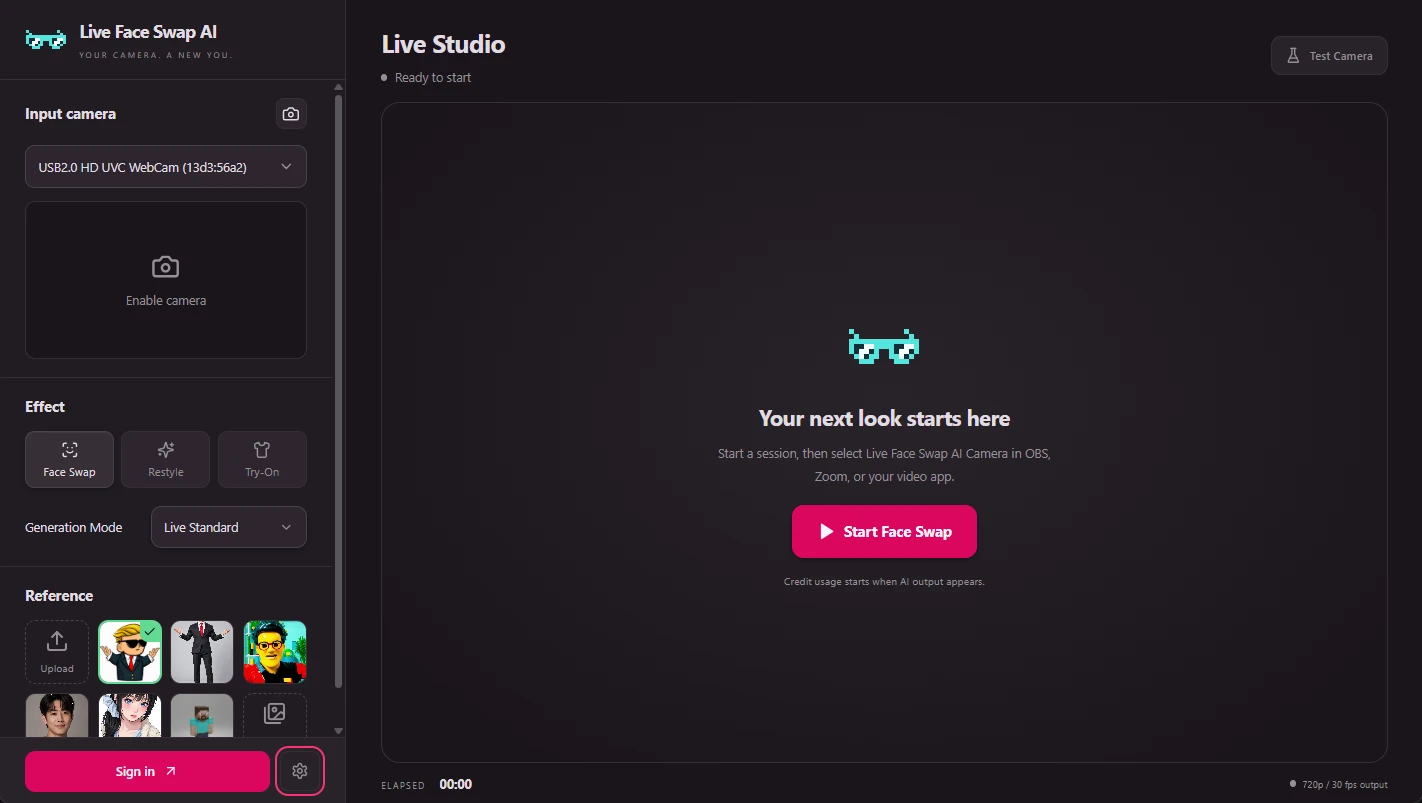
The Windows app adds Live Face Swap AI Camera as a video device. Choose it wherever your streaming or calling software lets you select a virtual camera.
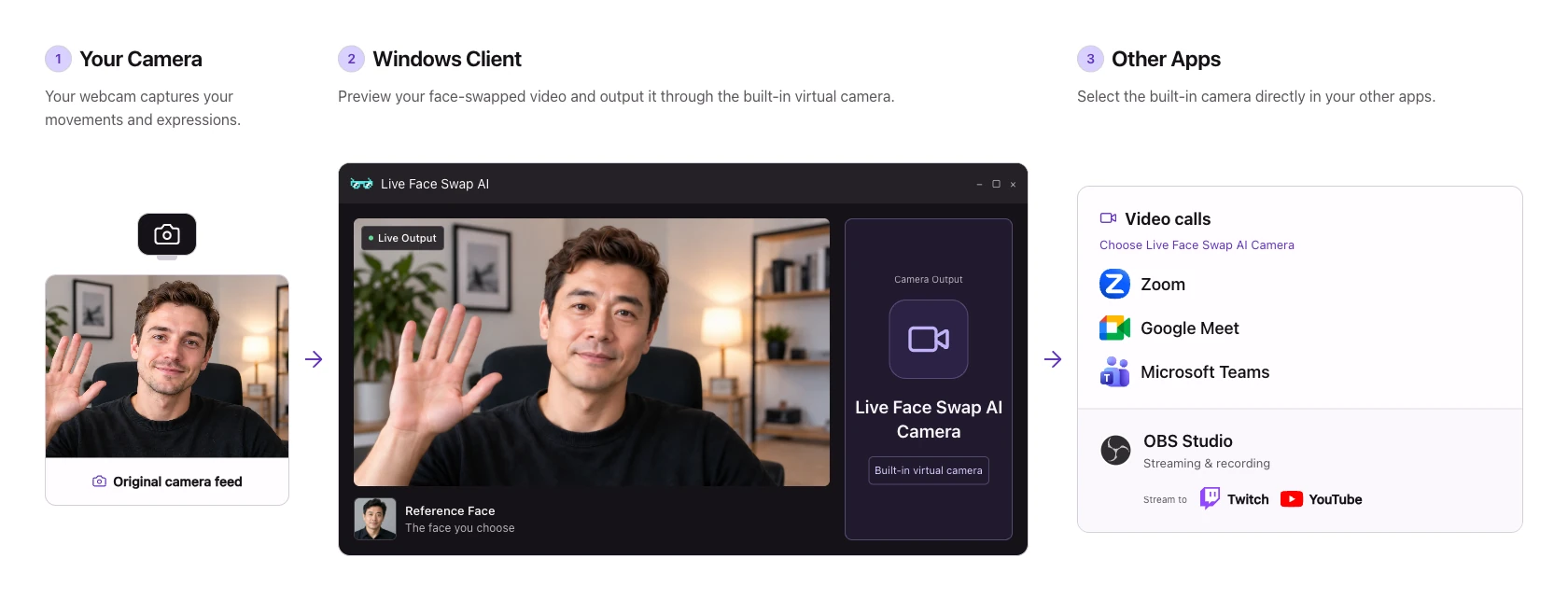
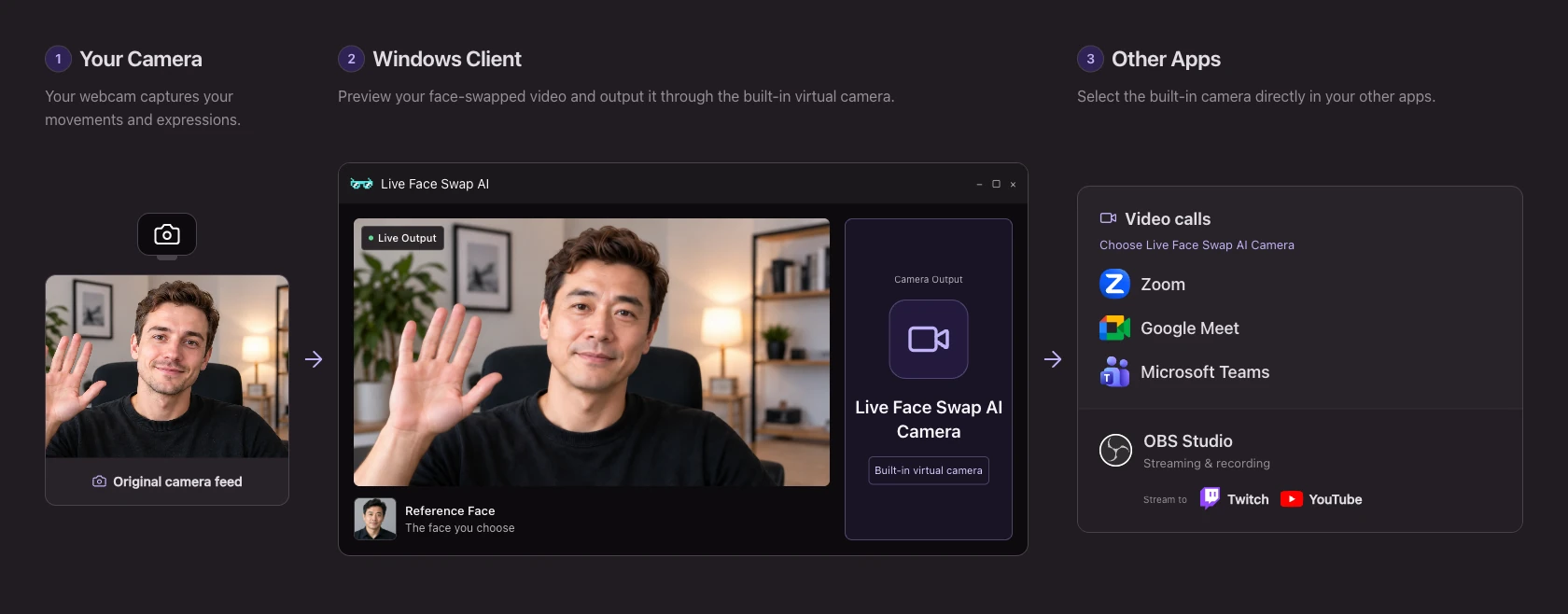
Add the virtual camera to OBS and use your existing scenes and streaming setup.
Record the transformed video in OBS for character videos, tutorials, or a performance with multiple roles.
Select the virtual camera in a compatible meeting or video chat app to share your AI appearance.
We recommend using the Windows app first. The Windows app provides a virtual camera for OBS, meetings, and video calls. The browser uses OBS window capture, with OBS Virtual Camera also needed for meetings and calls.
| What you need | Browser | Windows app |
|---|---|---|
| OBS streaming | Capture the browser output window in OBS. | Add a Video Capture Device source in OBS and select Live Face Swap AI Camera. |
| Meetings and video calls | Capture the browser output in OBS, start OBS Virtual Camera, then select OBS Virtual Camera in your meeting or calling app. | Select Live Face Swap AI Camera directly in a compatible meeting or calling app. OBS is not required. |
| Real-time AI effects | Face Swap, Restyle, and Try-On | Face Swap, Restyle, and Try-On |
| Reference images | Gallery and your own uploads | Gallery and your own uploads |
| Installation | Open the website and start | Install on Windows 11 x64 |
| Where you see the result | In the browser studio | In the app and through its virtual camera |
| Video recording | Record and download in the browser, or record with OBS | Record through OBS or another video app |
| Account and credits | Your Live Face Swap AI account | The same account and credit balance |
| AI processing | Cloud processing · Internet required | Cloud processing · Internet required |
On a Mac? Capture the browser output in OBS to stream or record. For calls, start OBS Virtual Camera. The native macOS app is coming soon.
Install once, then choose the AI camera in your usual video software.
Download and run the installer on Windows 11 x64. It installs the desktop app and its virtual camera.
Open the app, select your webcam and a reference image, then sign in with your website account and start the AI session.
In OBS, add a Video Capture Device and choose Live Face Swap AI Camera. In a compatible meeting app, select it in video settings.
AI runs in the cloud. Keep a stable internet connection throughout your session.
Downloads, accounts, and getting your virtual camera ready.
The current installer supports Windows 11 x64, Build 22000 or later. Windows 10 and Windows ARM are not supported. You can try the browser studio instead.
The macOS desktop app is coming soon. On your Mac, open the browser studio in desktop Chrome or Edge, then use OBS to capture its output view for streaming or recording. For video calls, start OBS Virtual Camera and select it in your meeting app. The browser studio includes setup instructions.
The app is free to download. Test Camera works without signing in or spending credits and outputs your original webcam video. AI sessions require an account with available credits; check the displayed rate before starting. See the pricing page for credit packs.
Yes. Sign in from the desktop app using your existing Live Face Swap AI account. The website and desktop app use the same credit balance; a separate desktop purchase is not required.
AI processing runs in the cloud, so both the browser studio and desktop app require an internet connection. Installing the app provides virtual camera output; it does not make AI processing offline.
In OBS, add a Video Capture Device source and select Live Face Swap AI Camera. In a meeting app that supports Windows virtual cameras, choose the same device in video settings. Start the AI session in the desktop app and check the receiving app's preview before going live.
Close and reopen the receiving app after installation so it can refresh its video device list. Use Test Camera in the desktop app to check the output. If the virtual camera is still missing, reinstall the Windows app and confirm that your system meets the requirements.
Download for Windows to use your AI look in other apps, or explore the effects in your browser first.
Windows 11 x64 · macOS app coming soon