
Browser
Try a look. Record a quick clip.
- Open the studio and use your webcam right away.
- Connect to video calls through OBS Virtual Camera.
- Record and download clips up to 90 seconds in the browser.
Transform yourself into a virtual face, an anime hero, or a fantasy character with live face swap AI, using a reference image to reimagine your webcam feed as you smile, speak, and move.
Works with







Choose a reference, open your camera, and see your camera input beside the live AI transformation. Free to try. No credit card required.
Open your camera to get started.
Billing starts when your live session begins and continues until it ends. End your session when you’re finished.
AI output · Up to 90 seconds per clip · Saved on this device
Recording requires a browser with video recording and local storage support. Try desktop Chrome or Edge.
Use OBS Studio to bring your live AI output to Zoom, Twitch, and more.
For easier setup, we recommend the Windows desktop app.
OBS StudioTest your connection for free using your original camera. No sign-in or credits required.
Keep this browser window open and unminimized. Use Stop to end your live session and billing.
Swap your face live on camera using a reference image. Choose another person’s face, an anime character, or a fantasy character, and the AI face swap follows your head movements and facial expressions in real time. Watch the demos below to see different faces applied to the same person.
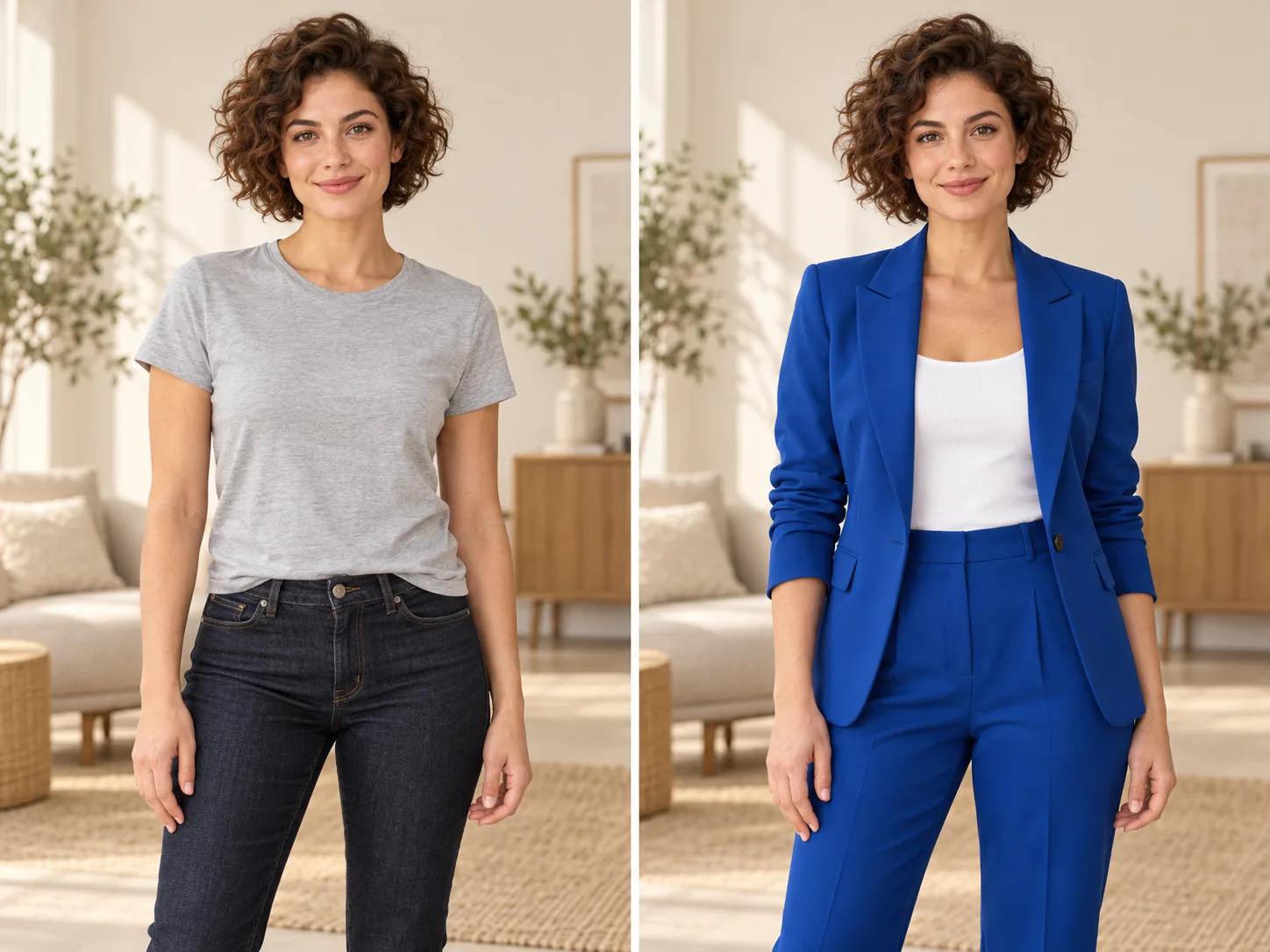
Try on different outfits live on camera using a reference image. Choose a suit, dress, costume, or armor, and the AI changes your clothing while following your body movements in real time. Watch the demos below to see different outfits on the same person.
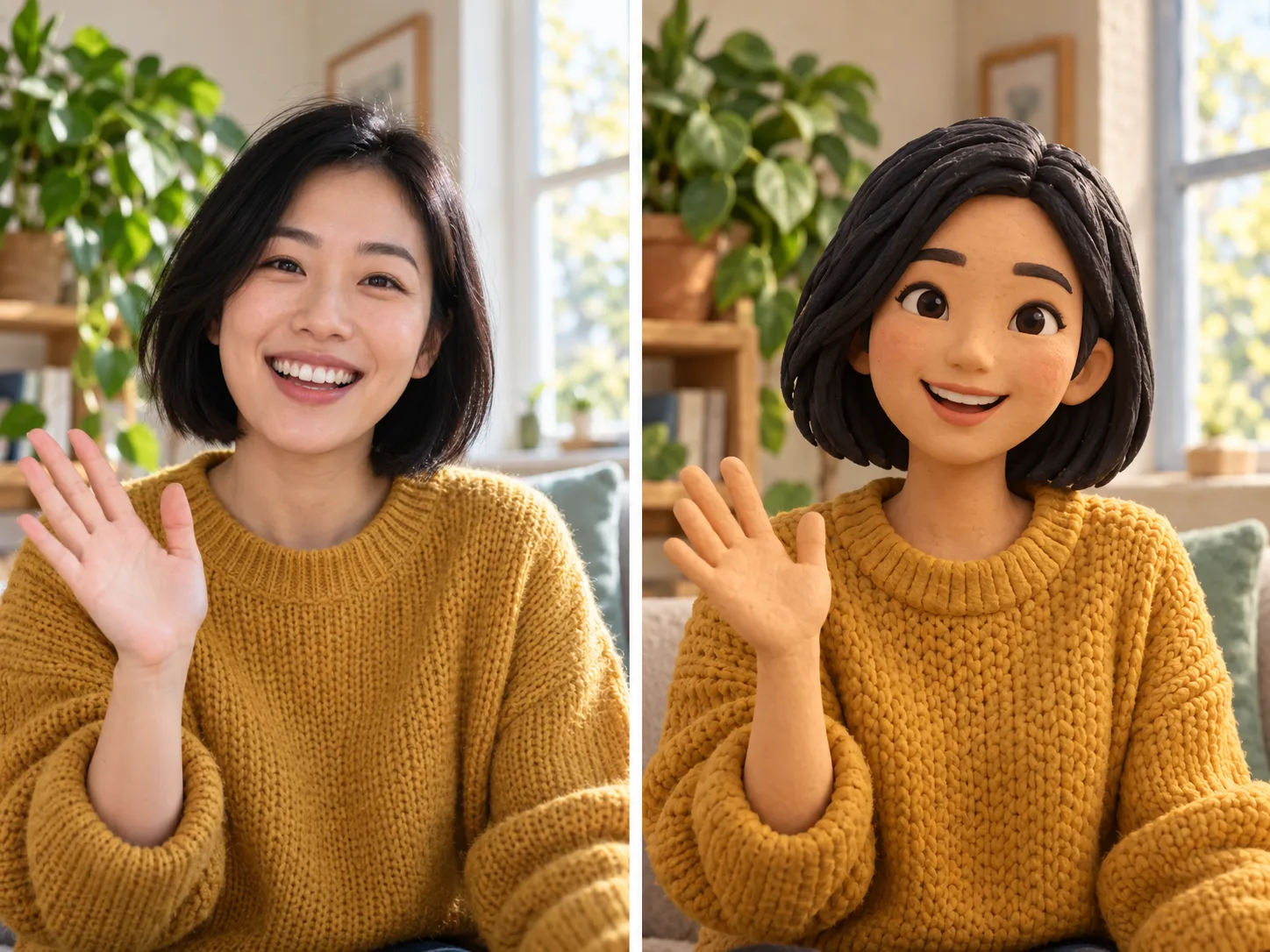
Change the visual style of your live camera feed using a reference image. Choose an anime, clay, painted, or other artistic look, and the AI applies that style to the people, objects, and backgrounds in your video while keeping the action in motion. Watch the demos below to see how different styles transform a person or scene.
Live face swap uses AI to replace the face in your webcam feed with a reference face in real time. Your expressions and movements drive the live result, while the reference image guides its appearance.
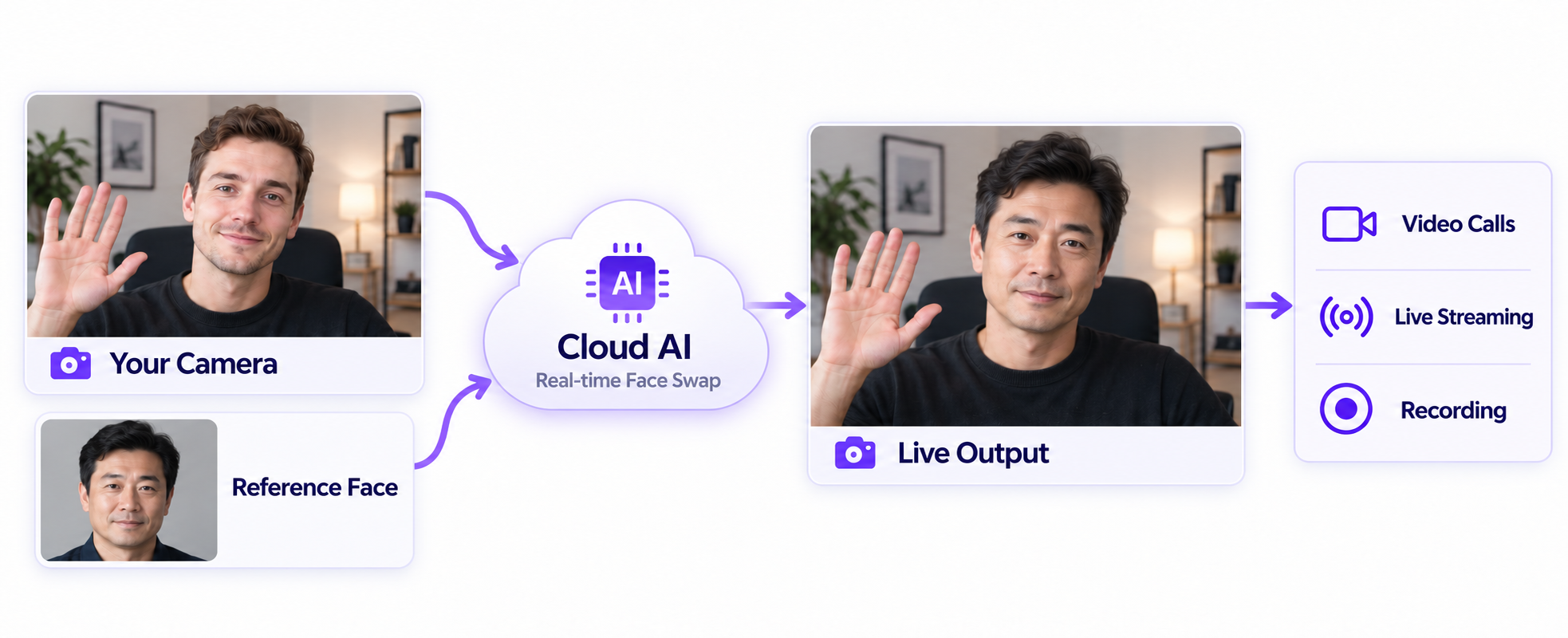
A reference portrait gives the AI a visual guide for the face you want to appear on camera. It supplies the facial appearance, while your webcam supplies the performance. A clear, front-facing reference helps the AI interpret the look you want.
Your webcam supplies a continuous stream of your expressions, head movements, and gestures. As you smile, speak, or turn your head, those changes guide the live transformation. Even lighting and a clearly visible face give the AI a better view of your performance.
During a live session, your selected reference and camera stream are sent to cloud AI for processing. The AI uses both inputs to generate transformed video and streams it back to the studio beside your original camera feed. Processing runs continuously, so a stable internet connection helps keep the output responsive.
Start by changing who appears on camera. Then explore what they wear and how their world looks, with three reference-driven effects in one live studio.
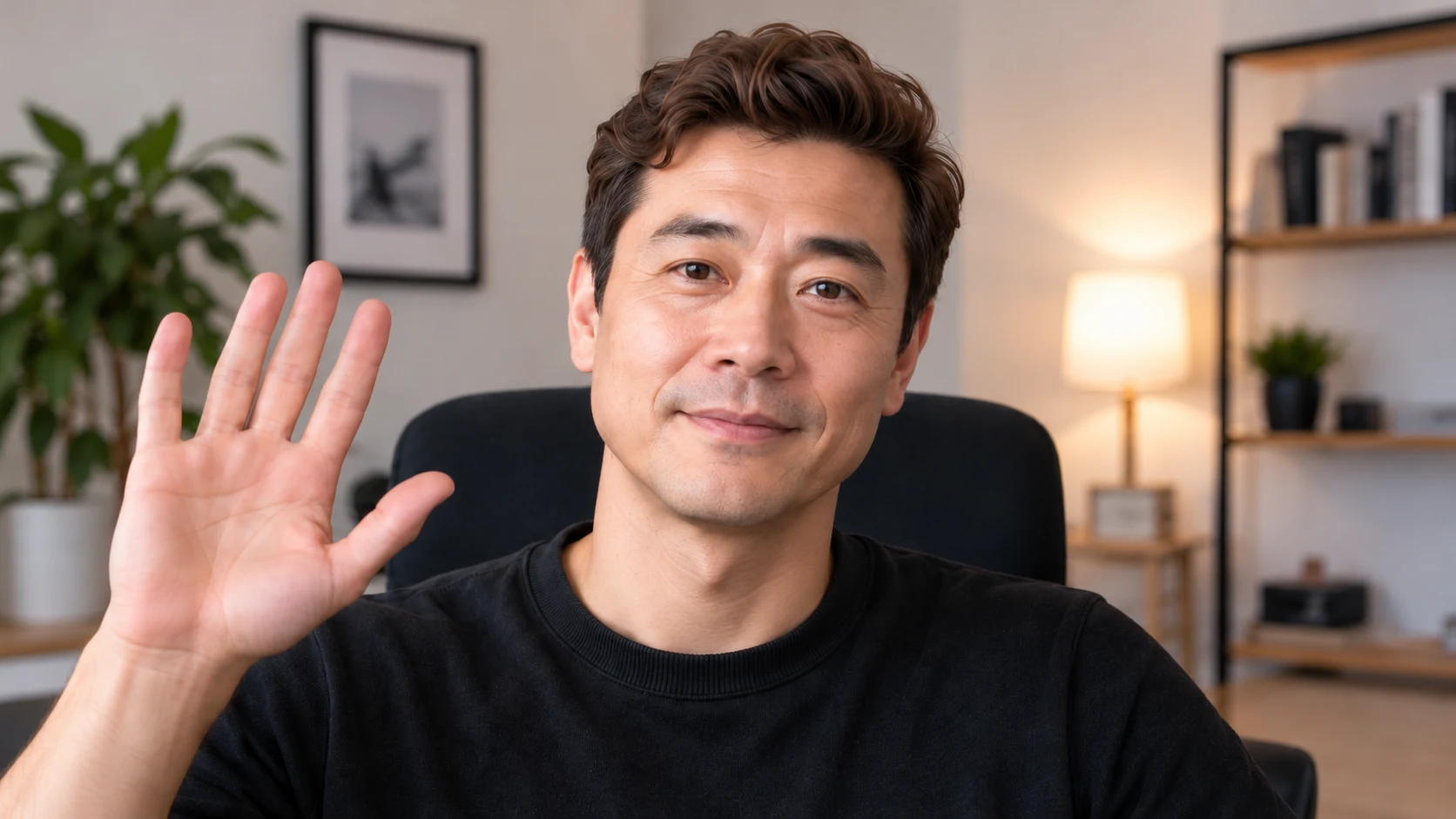
Give an anime hero your grin or see a fantasy character react to your next head turn. Live face swap uses your reference portrait to guide a new identity while your webcam provides the expressions and movement, giving you room to experiment with character ideas and short performances.

See how a sharp suit, a dramatic coat, or a suit of armor changes your presence on camera. Use an outfit image to guide the live transformation, then move and pose to explore the look as part of a performance or a costume idea.
Turn a familiar camera scene into an illustrated frame or a world of handcrafted textures. Restyle uses a reference image to guide the look of the whole scene, letting you explore how the same movements feel in an animated, painted, or clay-inspired setting.
Choose the identity you want to explore, get your camera ready, and bring the character to life with your own expressions.
Select Face Swap and pick a recommended image, or upload a clear, front-facing portrait in JPG, PNG, or WebP format, up to 10 MB.
Allow camera access and check your framing. Use even lighting and keep your face clearly visible for a better starting point.
Sign in, make sure you have credits, and start the live face swap. Try different expressions or references, then stop the session when you are finished.
The same AI effects, two ways to use them. Choose the setup that fits how you go live.
Try a look. Record a quick clip.
Bring your AI camera into your usual apps.
 Browser outputDesktop output
Your video call
Zoom, Meet, Teams & more
Streaming or recording in OBS? Capture the browser output, or select the desktop app’s virtual camera.
Same account and credits. Both use cloud AI and need internet. On a Mac? Use the browser for now; the macOS app is coming soon.
How references work, what you need to start, and how credits and recordings are handled in the browser studio.
Eligible new users can try live face swap for free after signing up, with no credit card required. After your trial, you can buy a one-time pack to continue. You can also watch the demos and preview your camera for free.
Choose Character in the studio, select a fictional character, and open your camera. Sign in and start your live session with available credits. Your camera input and AI output appear side by side.
Yes. Upload a JPG, PNG, or WebP image up to 10 MB, or choose a recommended reference. For face swaps, start with a clear, front-facing portrait. The result depends on your reference, lighting, and camera framing.
Yes. The studio includes Try-On for outfit changes and Restyle for visual transformations, with their own reference images. Stop your current live session before switching effects. These modes must not be used to recreate or imitate a real person's identity.
You can try the AI effects and check the results in your browser without installing anything. For regular use, live streaming, or video calls, we recommend the Windows desktop app. Its built-in virtual camera connects directly to compatible video apps and can be added as a video source in OBS. The macOS app is coming soon.
Billing starts when resources are allocated to your live session, which may happen before the first output frame appears. The studio displays the credit rate before you start. Stop the session when you are finished; purchased credits are valid for one month.
Yes. In a supported browser, you can record up to 90 seconds of the AI output, optionally include microphone audio, and download the clip to your device. Recordings stay on your device and are not uploaded or saved to your account. Download your clip before leaving the page; desktop Chrome or Edge is recommended.
Neither we nor our live processing provider record or retain your live camera feed or generated live video. Clips you choose to record, including optional microphone audio, stay on your device. Starting a live session sends the selected reference and camera stream to our processing provider for the requested effect. See our Privacy Policy for details about reference storage and data processing.
An anime hero with your smile. A fantasy character with your expressions. Choose a reference, step in front of the camera, and see where your next performance takes you.